
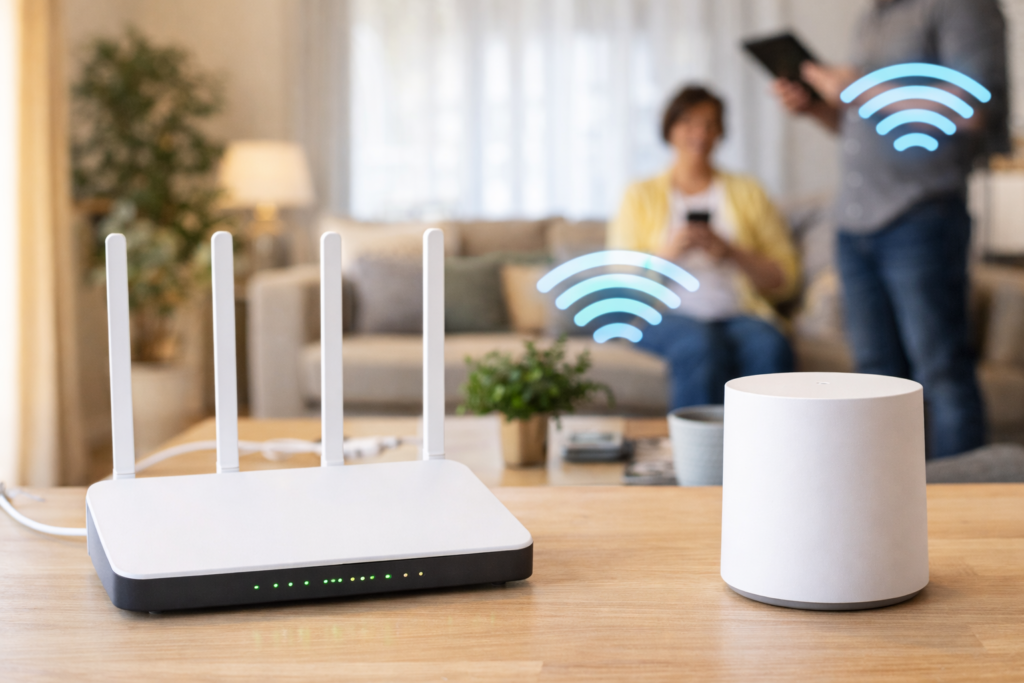
Wi-Fi problems are the most common technology issue in Melbourne homes — and the most frustrating, because restarting the router sometimes helps and sometimes doesn’t, and nobody explains why. The reason “just restart it” doesn’t permanently fix Wi-Fi is that different Wi-Fi problems have entirely different causes. This guide identifies which problem you have and points you at the right fix, rather than suggesting you try everything randomly.
Problem 1 — Slow everywhere in the house
What it usually means: ISP speed issue, router channel congestion, or plan limitation
If the internet is slow on every device in every room, the problem is almost never your router placement or coverage — it’s either the speed coming into the house or congestion on the Wi-Fi channel itself.
Check this first — wired speed test:
- Connect a laptop directly to your router with an Ethernet cable (not Wi-Fi)
- Go to speedtest.net and run a test
- If the wired speed matches your plan speed — the internet is fine, the Wi-Fi delivery is the issue
- If wired speed is also slow — the problem is your ISP or NBN connection, not your home network
Channel congestion — the apartment problem: In Melbourne apartment buildings, dozens of routers are broadcasting on the same Wi-Fi channels, causing interference that slows everyone down. Your router likely defaults to Channel 6 or 11 — which every neighbour’s router also uses. Changing to a less congested channel (via your router’s admin panel) can dramatically improve speed. We do this during home visits as a standard optimisation step.
2.4GHz vs 5GHz bands: Most modern routers broadcast on two frequencies. 5GHz is faster but shorter range — it’s ideal for devices near the router. 2.4GHz is slower but travels further through walls. If all your devices are connecting to 2.4GHz when they should be on 5GHz (or vice versa), speed suffers. We check and adjust band assignment during Wi-Fi visits.
Problem 2 — Slow or no signal in one room only
What it usually means: physical obstruction — router placement or building materials
Wi-Fi signal weakens as it passes through walls, floors, and ceilings. The severity depends on the material — plasterboard barely affects it, but brick, concrete, and double-glazed windows absorb signal significantly. This is why Wi-Fi is weak in back bedrooms of Melbourne’s older brick homes even when the router is powerful.
Router placement rules that matter:
- Routers should be central — not in a corner, garage, or enclosed cabinet
- Elevated placement (waist height or above) performs better than floor level
- Away from microwaves, cordless phones, and baby monitors (all use the same 2.4GHz frequency)
- In the open — not inside a cupboard or router enclosure (even decorative ones block signal significantly)
When repositioning isn’t enough: In double-storey homes, older brick Melbourne homes, and any home with more than 4 rooms, a single router — even a premium one — often can’t cover the whole property. This is where a mesh network is the right solution. See the mesh vs extender section below.
Problem 3 — Constant dropouts — connection keeps cutting out
What it usually means: NBN line fault, router fault, or ISP configuration problem
Dropouts — where the internet completely disconnects and reconnects — are different from slow speeds. The full diagnosis for this is in our dedicated internet dropping out guide, but the key distinction to make is:
Home network problem (fixable without ISP)
- ✓ Wi-Fi drops but wired connection stays up
- ✓ Specific devices drop more than others
- ✓ Drops when microwave or cordless phone is used
- ✓ Router is 4+ years old
ISP/NBN line problem (needs escalation)
- ✓ Wired AND Wi-Fi both drop at same time
- ✓ Drops happen at regular intervals (e.g. 2am)
- ✓ Router lights go out during the dropout
- ✓ Drops correlate with rain (FTTN copper issue)
The test: Connect a laptop to the router with an Ethernet cable during a dropout. If the wired connection stays up when Wi-Fi drops, the problem is the router or its Wi-Fi radio. If wired also drops, the problem is the internet line coming into the house — which requires ISP escalation. Our dropout guide covers the exact language that gets ISPs to act.
Problem 4 — One specific device won’t connect
What it usually means: device-side problem, not router problem
When every other device connects fine but one specific laptop, phone, or tablet won’t connect, the router is almost certainly not the problem. The issue is the device’s Wi-Fi configuration, a saved network profile that’s become corrupted, or the device’s network adapter.
Try these in order:
- Forget the network and reconnect: On Windows — Settings → Network → Wi-Fi → click the network name → Forget → reconnect fresh. On iPhone — Settings → Wi-Fi → tap the “i” next to the network → Forget This Network → reconnect.
- Check if it’s connecting to the wrong band: If your router has two networks (e.g. “HomeWifi” and “HomeWifi_5G”), try connecting to the other one.
- On Windows only — network reset: Settings → System → Network reset → Reset now. This clears all saved network adapters and profiles. The computer needs to reconnect to Wi-Fi fresh after this.
- Check the device’s Wi-Fi adapter in Device Manager: Right-click Start → Device Manager → Network Adapters → if there’s a yellow warning triangle on the Wi-Fi adapter, the driver needs updating.
For specific guides: iPad not connecting to Wi-Fi
Problem 5 — All devices drop at exactly the same time
What it usually means: router crash, ISP line fault, or NBN NTD issue
When every device — phone, laptop, Smart TV, tablet — loses connection at exactly the same moment, the problem is upstream from all of them. Either the router itself crashed (look at the router lights — are they all out or flashing abnormally?), the NBN NTD box (the white box on your wall that the NBN connects to) has lost its connection, or the ISP has an outage.
- Check your ISP’s outage page from mobile data — most ISPs have a status page or outage checker
- Check the NBN NTD lights — the NTD is the white box usually near your phone socket or mounted on a wall. A solid green “connection” light means NBN is working; a red or off light means the NBN connection has dropped
- Router restart sequence: Turn off the NTD box first, wait 30 seconds, then restart the router. Then turn the NTD back on, wait for it to fully connect (2–3 minutes), then restart the router again
- If it happens regularly at the same time each day — an ISP session timeout is resetting your connection on a schedule. This is a known issue with some ISP configurations and requires a call to your ISP to disable
Mesh Wi-Fi vs Wi-Fi extender — the important difference
If coverage is the problem (dead zones, weak signal in back rooms), you have two main options. Most people choose the cheaper option — an extender — without understanding how it works differently to a mesh system. For many Melbourne homes, an extender actually makes the experience worse.
📡 Wi-Fi Extender (~$40–$80)
Rebroadcasts the existing Wi-Fi signal. The critical problem: it halves the available bandwidth. To extend the signal, the extender uses half its capacity receiving from the router — leaving only half to send to your devices. Result: you get signal in the far room, but at roughly 40–50% of the original speed.
Also creates a separate network name (e.g. “HomeWifi_EXT”) — your devices don’t automatically switch to it as you move around.
🕸️ Mesh Wi-Fi System (~$200–$500)
Multiple nodes that communicate on a dedicated backhaul channel — so they don’t sacrifice bandwidth to talk to each other. All nodes broadcast the same network name, and your devices automatically connect to the nearest node as you move around the home.
The right solution for: double-storey homes, homes with brick/concrete walls, and any property with more than 3–4 rooms. We install and configure Google Nest, TP-Link Deco, and Eero systems across Melbourne.
Frequently asked questions
Sometimes — but only if the router is the actual cause. A new router won’t fix an NBN line fault, a device-side configuration problem, or channel congestion (because a new router will default to the same congested channels as the old one). A new router is the right fix when: the current one is 5+ years old and showing heat damage or hardware decline, the current one doesn’t support the speeds your NBN plan provides (older routers cap at 100Mbps), or the current one doesn’t support the 5GHz band. We assess the router’s health and capability during a visit before recommending replacement.
Yes — ISP support teams run a basic line test that only checks whether the connection is active, not whether it’s performing at the right speed or dropping intermittently. Intermittent faults are often missed entirely by automated tests. The key is providing evidence: a log of dropout times, a speed test result over several days, and the specific complaint that dropouts correlate with rain (for FTTN connections) or happen at regular intervals. Our internet dropping out guide has the exact escalation language that gets ISPs to open a proper investigation rather than closing the ticket.
For a 3-bedroom single-storey house with plasterboard walls — probably not. A well-positioned router (central, elevated, in the open) usually covers a standard 3-bedroom home adequately. For a 3-bedroom home with brick walls, or one that’s double-storey, or where the router has to be at one end due to the NBN entry point — mesh is worth it. Entry-level mesh systems (TP-Link Deco M4, Google Nest Wi-Fi) cost around $150–$200 for a two-pack and permanently eliminate coverage issues. We give an honest assessment of whether mesh is needed after checking your home’s layout and signal during a visit.
Evening slowdowns that recover in the morning point to network congestion at your ISP — not your home network. This is most common with HFC cable NBN connections, where the available bandwidth in your neighbourhood is shared between all active users. During peak viewing hours (7–11pm), this shared capacity is heavily used and everyone experiences slower speeds. The ISP-side fix is upgrading to a higher-tier plan with priority traffic, or switching to an ISP that has more backhaul capacity in your area. Repositioning your router or buying a mesh system won’t affect this type of slowdown.
Yes — Wi-Fi diagnosis and setup is one of our most common jobs across Melbourne. We run signal strength tests in each room, check the router’s band configuration and channel assignment, test wired vs wireless speeds to isolate the fault, and recommend and install the right solution — whether that’s repositioning the router, installing a mesh system, or providing ISP escalation evidence. Our rate is $89/hr with no call-out fee. Call 0435 955 429 or book online.
Wi-Fi problems at home in Melbourne?
We test signal in every room, identify the cause, and fix it — whether that’s repositioning the router, installing mesh Wi-Fi, or escalating to your ISP. $89/hr, no call-out fee, all Melbourne suburbs.
Related Wi-Fi guides
Serving all Melbourne suburbs — Doncaster, Camberwell, Box Hill, Glen Waverley, Kew, Hawthorn, Balwyn, Ringwood and all surrounding areas. View all service areas →
About Fixable: Friendly, patient on-site IT support across all Melbourne suburbs — Wi-Fi, computers, printers and more. Always in plain English. Call 0435 955 429 or visit fixable.au