
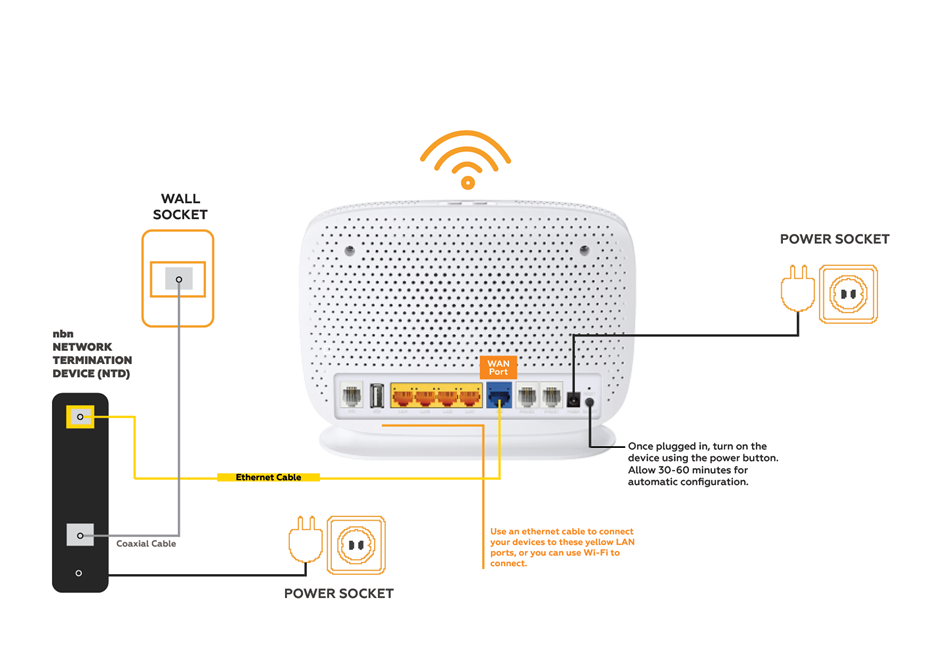
The NBN technician comes, does their work, and leaves. You’re now staring at a box with some lights on it and a modem the provider sent in the post — and nothing is actually connected yet. This is the moment most Melbourne households realise that “getting NBN connected” and “having the internet working throughout your home” are two very different things.
This guide explains exactly what your internet service provider (ISP) does during the installation process, what they leave for you to figure out, and how the setup process differs depending on which type of NBN connection your property has. Understanding this makes the whole process far less confusing — and helps you identify exactly what the problem is when something isn’t working.
What your ISP sets up — and what they leave for you
Most people assume the NBN technician will set up everything. They don’t. Understanding this boundary prevents a lot of frustration.
✅ What the NBN/ISP technician does
- Installs or activates the NBN connection point (the box on the wall)
- Tests that the NBN connection itself is active and receiving signal
- May connect the modem/router to verify the connection works
- Confirms your service is active in their system
✗ What they do NOT set up
- Wi-Fi coverage throughout your home
- Connecting your devices (computers, phones, Smart TVs, printers)
- Router placement for best coverage
- Configuring a mesh Wi-Fi system if needed
- Setting up VoIP home phone if you have one
The short version: Your ISP is responsible for getting the NBN signal to a box in your home. Everything from that box outward — the router, the Wi-Fi, the devices — is your responsibility to set up. This is why the internet might work on one device plugged in by a cable, but nothing else in the house is connected. The connection is active; the home network hasn’t been set up yet.
NBN connection types — why yours matters for setup
This is the part most guides skip entirely — but it’s the most important thing to understand. NBN Australia uses five different technologies to deliver internet to homes, and the setup process is meaningfully different for each. Check your NBN connection type at nbnco.com.au by entering your address.
Fibre to the Premises
Best connection typeA fibre optic cable runs directly to your home. An NBN technician installs an NTD (Network Termination Device) — a white box usually mounted on the wall inside your home. Your modem/router plugs into this box via an Ethernet cable. This is the fastest and most reliable NBN connection type.
Setup note: The NTD has 4 UNI-D ports. Your modem plugs into UNI-D 1 (the first port). If your provider hasn’t told you which port, it’s always UNI-D 1.
Fibre to the Node
Most common in older Melbourne suburbsFibre runs to a cabinet (the “node”) on your street, then uses your existing copper phone line to deliver internet to your home. Very common in Melbourne’s eastern suburbs built before 2000. No NBN technician visit is usually required — the connection is activated remotely.
Setup note: FTTN requires a modem-router (not just a router). The modem plugs into your existing phone wall socket using an ADSL2+ cable (the same connector as old ADSL). If your provider sent a router without a built-in modem, it will not work for FTTN.
Common problem: Speeds on FTTN vary significantly depending on how far your home is from the node. Homes more than 500m from the node often see speeds well below the plan’s advertised maximum — this is not a fault and cannot be fixed by your provider.
Hybrid Fibre Coaxial
Often in suburbs with Foxtel cable historyUses the same coaxial cable infrastructure that previously carried Foxtel or cable TV. An NBN technician installs an NTD box that connects to the coaxial cable outlet on your wall. Your modem/router then connects to the NTD via Ethernet.
Setup note: If you previously had Foxtel installed, the coaxial cable is already in your wall. The NTD gets connected to this. If the existing cable runs to a different room to where you want the router, an electrician or IT technician can relocate the connection point.
Fibre to the Curb
Fibre runs to a small pit or pole outside your property boundary, then uses the short copper phone line from there to your home. A DPU (Distribution Point Unit) is installed at the pit — you don’t see this. Your NBN provider sends a modem-router that plugs into your phone socket.
Setup note: FTTC is faster and more reliable than FTTN because the copper run is very short. The setup is similar — modem into phone wall socket — but the NBN modem is usually a specific device supplied by your provider that must be used, not just any ADSL modem.
Fixed Wireless
Outer Melbourne suburbsSignal transmitted from a tower to a dish or antenna mounted on your roof. An NBN technician installs and positions the external antenna, running a cable inside to an NTD box. Your modem/router then connects to the NTD.
Setup note: Rain, heavy cloud, and trees can affect Fixed Wireless speeds — this is normal and not a fault. If speeds drop significantly in wet weather, the antenna alignment may need adjusting by an NBN technician (free, call your provider).
The NBN box vs the modem — what each one does
The most common source of confusion we encounter on NBN setup visits across Melbourne is people not knowing which box does what. Here’s the plain-English breakdown:
The NBN box (NTD)
Installed by the NBN technician. Usually mounted on the wall. Has indicator lights. Brings the NBN signal into your home. You do not configure this — it’s NBN Co’s equipment and is managed by them. Your only interaction with it is plugging your modem’s Ethernet cable into one of its ports.
Only present on: FTTP, HFC, FTTC, Fixed Wireless connections. FTTN does not have an NTD box — it uses your existing phone socket directly.
The modem/router
Usually sent by your ISP in the post, or you purchase your own. This is your equipment. It takes the NBN connection from the NTD (or phone socket for FTTN/FTTC) and creates the Wi-Fi network in your home. This is the device you configure — Wi-Fi name, password, settings.
Note: For FTTN and FTTC, you need a modem-router (has a built-in modem). For FTTP and HFC, a standard router (no modem needed) works because the NTD handles the modem function.
Common problems after connection day — and their fixes
Internet light on, but no internet
The NBN connection is live but the router isn’t authenticating. Most likely cause: the router hasn’t been configured with your ISP’s settings (username and password for PPPoE authentication). Log in to your router’s admin page (usually 192.168.0.1 or 192.168.1.1 in a browser) and enter the credentials your ISP emailed or included in the setup guide. If you’ve lost these, call your provider to have them resent.
Works when plugged in by cable but Wi-Fi doesn’t reach bedrooms
The NBN connection is fine — but the router position is poor, or the home is too large for a single router. This is an extremely common situation in Melbourne’s older double-brick homes where the NBN box was installed near the front door and bedrooms are at the back. The fix is either relocating the router (possible if you use a longer Ethernet cable) or adding a mesh Wi-Fi system. See our Wi-Fi problems guide for the full explanation.
Internet keeps dropping out
On FTTN connections, dropouts are often caused by a faulty phone line between the node and your home — this is NBN Co’s responsibility to fix, not yours. Call your provider and ask them to “run a line test” — if faults are found on the external line, they arrange an NBN technician visit at no cost. For internet dropouts on other connection types, the cause is usually the router or Wi-Fi rather than the NBN line itself.
Speeds much slower than the plan advertises
Run a speed test at nbnco.com.au/speedtest with a device plugged directly into the router by Ethernet cable (not Wi-Fi). If speeds are good on cable but poor on Wi-Fi — the issue is your Wi-Fi coverage, not the NBN. If speeds are slow even on cable — contact your provider. For FTTN connections, slow speeds may be a permanent limitation of your property’s distance from the node, not a fault.
Home phone no longer working after NBN
NBN disconnects the old copper phone network. If you keep a landline, it now runs through your NBN connection as VoIP (Voice over Internet Protocol). For FTTP connections, plug the phone into the TEL 1 port on the NTD box (not the router). For other connection types, the phone plugs into the router’s phone port, or you need a VoIP adapter. Your provider should have included setup instructions — call them if your phone isn’t working, as this is within the scope of their service.
Switching NBN providers — what actually changes
Switching from one NBN provider to another is one of the most common reasons Melbourne households call us after the switch. The confusion usually comes from not knowing what the new provider will and won’t send.
When you switch NBN providers:
- ✓ The NBN infrastructure (box, cable, connection point) stays exactly the same — it belongs to NBN Co, not your provider
- ✓ No NBN technician visit is needed for most provider switches (FTTN, FTTC, HFC) — the switch happens remotely
- ✓ Your new provider may send a new router/modem — you typically need to swap it in and configure it
- ⚠ Your Wi-Fi name and password will change if you use the new router — all devices need to reconnect (Smart TVs, printers, phones, tablets)
- ⚠ If you keep your old router, you may need to update its settings with your new provider’s PPPoE credentials
The most common problem after switching is that devices which were connected to the old Wi-Fi network (usually saved under the old router’s name) no longer automatically reconnect. This includes Smart TVs, printers, tablets, and other devices that people don’t think of as needing to be reconfigured. We handle all of this during a setup visit — connecting every device in the home to the new network and testing each one.
Frequently asked questions
For a household of 1–2 people doing email, browsing, and occasional streaming — NBN 25 is adequate. For 3–5 people with multiple devices streaming simultaneously and video calls — NBN 50 is recommended. NBN 100 makes a noticeable difference if you frequently download large files, use video conferencing for work, or have 5+ devices active simultaneously. For most Melbourne households, NBN 50 is the sweet spot. Note that on FTTN connections, you may not achieve the full speed of your plan if your home is far from the node.
In order: (1) Check the lights on both the NBN box and the router. The NBN box should have a solid green light (the “Connection” or “Optical” light). If that light is red or off, the problem is with the NBN line itself — call your provider. (2) If the NBN box looks normal but the router is showing an error light, restart the router by unplugging it for 60 seconds. (3) Check if there’s an outage in your area on your provider’s website or the NBN service status page.
Not necessarily. If your existing modem-router is compatible with your new provider (and most are), you can keep it and just update the settings. Your new provider should email you the PPPoE username and password needed to authenticate. If your new provider sends a replacement router, you can choose to use theirs or keep your own — using your own router gives you more control but requires updating the credentials yourself.
Yes — this is one of our most common Wi-Fi jobs. We test signal strength in every room, identify whether you need a mesh system or just a better router position, and implement the fix. See our full Wi-Fi setup and mesh network service page for what a visit covers. Our rate is $89/hr with no call-out fee across all Melbourne suburbs.
Yes — we regularly visit Melbourne homes on NBN connection day or the day after. We connect the router to the NBN box, configure it with your ISP’s settings, test the connection speed, set up Wi-Fi coverage throughout the home, and connect every device (computers, phones, Smart TVs, printers, tablets). We also check whether your home phone needs to be configured through the NBN and sort that out in the same visit. $89/hr, no call-out fee — call 0435 955 429 to book.
NBN connected but nothing else working?
We come to your home, configure everything properly, connect all your devices, and test the whole setup before leaving. $89/hr, no call-out fee, all Melbourne suburbs.
Related guides
Serving all Melbourne suburbs — Doncaster, Camberwell, Box Hill, Glen Waverley, Kew, Hawthorn, Balwyn, Ringwood and all surrounding areas. View all service areas →
About Fixable: Friendly, patient on-site IT support across all Melbourne suburbs — NBN setup, Wi-Fi, computers, printers and more. Always in plain English. Call 0435 955 429 or visit fixable.au