
Your phone connects. Your laptop connects. But the iPad refuses — showing “Unable to Join Network,” “Incorrect Password” (even though the password is right), or connecting but then not loading anything. This is one of the most common calls we get from Melbourne households, especially from seniors who rely on their iPad for email, news, and video calls with family.
iPads have a few Wi-Fi quirks that are completely unique to Apple devices — most notably a privacy feature introduced in iOS 14 that generates a random “private” Wi-Fi address, which many home routers block or don’t recognise properly. Understanding this — and the other iPad-specific causes — means you can fix most problems without needing to reset anything major. Work through these in order.
First: identify which type of failure you have
Network appears in the list but iPad won’t join, even when the password is correct. → Start with Fix 1 (Forget & Rejoin) and Fix 3 (Private Address)
iPad can’t see your home network name. → Check Airplane Mode (Fix 1), then check router is broadcasting (Fix 6)
Wi-Fi icon shows in the top bar, but Safari, email and apps say no connection. → Jump to Fix 4 (Renew Lease)
Joins the network, works briefly, then loses connection on its own. → Jump to Fix 5 (iOS update) and Fix 6 (signal/router)
Fix 1 — The basics: check these before anything else
Check Airplane Mode is off
Swipe down from the top-right corner of the screen to open Control Centre. If the aeroplane icon is orange/highlighted, tap it to turn Airplane Mode off. This is easy to accidentally enable — especially on an iPad with a case that presses the side buttons.
Restart the iPad and router in the right order
Turn off the iPad fully (hold the top button + volume button → slide to power off). Turn off your router at the wall and wait 60 seconds. Turn the router back on and wait until all lights are stable (about 2 minutes). Then turn the iPad back on. Order matters — the router needs to be fully ready before the iPad tries to connect.
Forget and rejoin the network
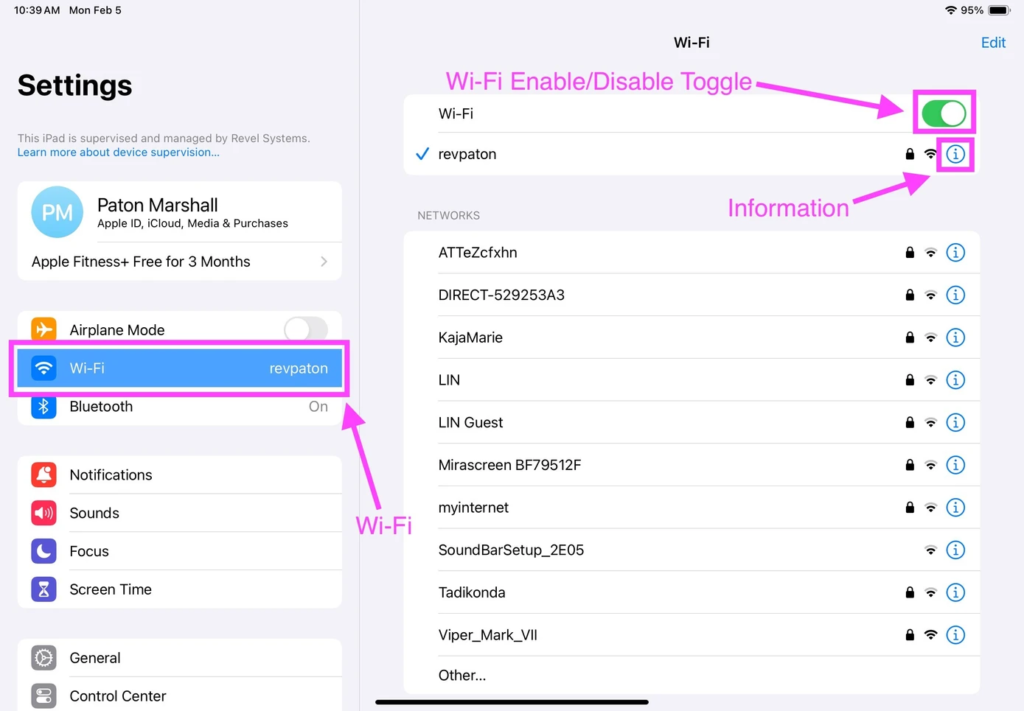
Go to Settings → Wi-Fi. Tap the blue ⓘ circle next to your network name → tap “Forget This Network” → confirm. Now tap your network name in the list and enter the password fresh. This clears any corrupted saved connection data. Have your Wi-Fi password ready — check the sticker on your router if unsure, or find it on your phone under Settings → Wi-Fi → tap the network name → Password.
Fix 2 — The Private Wi-Fi Address feature (the most commonly missed cause)
This is the iPad-specific issue that catches most people off guard — and it’s the cause we see most often on home visits in Melbourne. Since iOS 14, iPads automatically use a “Private Wi-Fi Address” — a randomly generated MAC address — when connecting to each network. This is a privacy feature designed to prevent third parties from tracking your device across different Wi-Fi networks.
The problem: many home routers have MAC address filtering enabled, or they use MAC address recognition to manage connected devices. When the iPad connects with a random private address instead of its real one, the router may reject it, assign it incorrectly, or intermittently drop it. The iPad appears to be trying to connect, the password is correct, but the router keeps refusing it.
How to turn off Private Address for your home network:
- Open Settings → Wi-Fi
- Tap the blue ⓘ circle next to your home network name
- Find “Private Wi-Fi Address” (or “Private Address” on older iOS)
- Toggle it OFF
- The iPad will disconnect and reconnect — enter your Wi-Fi password again if prompted
Note: Turning off Private Address is safe for your home network — you’re the owner of the router and there’s no privacy risk. It’s appropriate to leave Private Address ON for public Wi-Fi networks (cafes, airports, shops). Just turn it off for your home network only. Per Apple’s support documentation, this setting is per-network — changing it for home doesn’t affect public networks.
Fix 3 — Connected but no internet: Renew Lease
If your iPad shows the Wi-Fi symbol in the top bar (or the Wi-Fi icon under Settings is highlighted) but apps say “No Internet Connection” or Safari won’t load anything — the iPad has connected to the Wi-Fi network but hasn’t been properly assigned an IP address by the router. This is called a DHCP lease failure, and it’s more common than people realise.
The fix is called Renew Lease — it forces the iPad to request a fresh IP address from the router:
- Go to Settings → Wi-Fi
- Tap the blue ⓘ circle next to your connected network name
- Scroll down to find “Renew Lease”
- Tap it and confirm
- Wait 10–15 seconds, then try loading a webpage in Safari
This is safe to do and won’t change any settings — it just asks the router for a fresh connection assignment. If this fixes it temporarily but the problem keeps coming back, see Fix 6 about router configuration or consider our Wi-Fi problems at home guide.
Fix 4 — After an iOS update: check for known Wi-Fi bugs
Several iOS and iPadOS updates over the years have introduced Wi-Fi connectivity bugs — particularly affecting the 2.4 GHz band, DHCP behaviour, or the Private Address feature. If your iPad’s Wi-Fi problem started immediately after an update, this is the most likely cause.
Check if a newer iPadOS update is available
Apple typically releases a fix within 1–2 weeks of a Wi-Fi regression bug being widely reported. Go to Settings → General → Software Update. If an update is available, install it — connect the iPad to the charger first and ensure at least 50% battery. Wi-Fi bugs introduced by one update are frequently fixed by the next point release.
Reset Network Settings (only after trying everything above)
This clears all saved Wi-Fi networks, passwords, VPN settings, and cellular settings. It does not delete your photos, apps, or personal data. Go to Settings → General → Transfer or Reset iPad → Reset → Reset Network Settings. After resetting, reconnect to your home Wi-Fi network from scratch.
Before doing this: make sure you know your Wi-Fi password. Have it written down or visible on your phone. After a Network Settings reset you’ll need to re-enter it.
Try connecting to a mobile hotspot instead
Create a personal hotspot on your iPhone or Android phone (Settings → Personal Hotspot → turn on). Connect the iPad to this hotspot. If it connects immediately and apps load fine — the problem is definitively with your home router or its configuration, not with the iPad itself. This narrows down the diagnosis significantly and tells us where to focus the fix.
Fix 5 — When it’s the router or home network, not the iPad
If you’ve worked through all the iPad-side fixes and it still won’t connect — or if other devices are also having intermittent issues — the problem is in the home network rather than the iPad. The most common router-side causes that affect iPads specifically:
MAC address filtering is enabled on the router
Some routers have a security setting that only allows devices with pre-approved MAC addresses to connect. When the iPad uses its Private Address (a random MAC), the router rejects it. Solution: either turn off Private Address on the iPad for your home network (Fix 2), or log into your router’s admin settings and disable MAC address filtering. We handle router configuration during a home visit.
Router has too many connected devices and ran out of IP addresses
Home routers have a DHCP pool — a range of IP addresses they can assign to devices. Most home routers default to a pool of 50 addresses. If you have a Smart TV, several phones, tablets, computers, smart home devices and printers all connected, you can actually exhaust this pool. Symptoms: some devices connect fine, others are refused. Fix: log into router admin and increase the DHCP pool size — or we can do this during a visit.
Weak signal at the iPad’s location
iPads are often used in different rooms to where the router sits. Weak signal causes intermittent connections and dropouts rather than a complete failure to connect. Test by carrying the iPad to the room where the router is — if it connects reliably close to the router but not from further away, signal coverage is the issue. See our Wi-Fi slow in bedroom Melbourne guide for coverage solutions, or our Wi-Fi and mesh network setup service if the home needs better coverage overall.
If you’ve just switched NBN providers and your iPad stopped connecting around the same time, see our NBN setup Melbourne guide — provider switches change the Wi-Fi network name and password, and every device (including the iPad) needs to be updated to the new details.
Frequently asked questions
Almost always the Private Wi-Fi Address issue (Fix 2 above) or a corrupted saved network entry. First, Forget the network and rejoin fresh (Fix 1). If it keeps rejecting a correct password after forgetting and re-adding, turn off Private Wi-Fi Address for your home network. If the problem persists, your router may have MAC address filtering enabled — this requires logging into the router’s admin page to resolve.
No. Reset Network Settings only clears Wi-Fi passwords, saved networks, Bluetooth pairings, VPN settings and cellular settings. Photos, contacts, apps, messages, emails and all personal data remain completely untouched. The only thing you’ll lose is saved Wi-Fi passwords — so have your home Wi-Fi password ready before you do it.
This tells us the iPad’s Wi-Fi hardware is working — the problem is specific to your home network or router. Most likely: MAC address filtering on your home router, a router firmware issue, or a router configuration problem. Since it works elsewhere, the iPad itself is fine and no hardware repair is needed. We can log into your home router and fix the configuration issue during a home visit.
Yes — iPhones use the same iOS Wi-Fi stack as iPads, so the fixes are identical. The Private Wi-Fi Address feature, Renew Lease, Forget Network and Reset Network Settings all work the same way on iPhone. The menu paths are slightly different (Settings → Wi-Fi on iPhone rather than showing the Wi-Fi icon on the home screen), but the steps are the same. Our phone and tablet setup service covers iPhones, iPads and Android devices.
Yes — we visit Melbourne homes for iPad Wi-Fi issues regularly. In most cases it’s a 30–45 minute visit: we diagnose whether it’s an iPad-side or router-side issue, apply the correct fix, and verify the iPad is connecting stably before leaving. If other devices in the home are also having issues we address those in the same visit. Our rate is $89/hr with no call-out fee across all Melbourne suburbs. For seniors we take extra time to explain what we’ve done and why. Call 0435 955 429 to book.
iPad still won’t connect?
We come to your home, diagnose whether it’s the iPad or the router, and fix it properly. $89/hr, no call-out fee, all Melbourne suburbs. Same-day often available.
Related guides
Serving all Melbourne suburbs — Doncaster, Camberwell, Box Hill, Glen Waverley, Kew, Hawthorn, Balwyn, Ringwood and all surrounding areas. View all service areas →
About Fixable: Friendly, patient on-site IT support across all Melbourne suburbs — iPads, iPhones, computers, Wi-Fi and more. Always in plain English. NDIS Worker Screening cleared. Call 0435 955 429 or visit fixable.au