
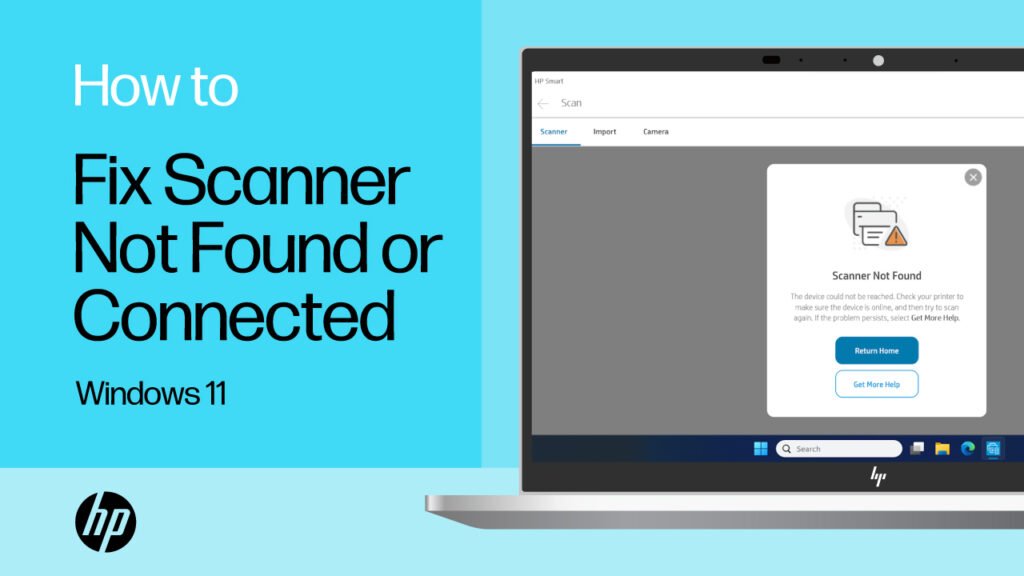
Home scanner problems come in two flavours: the scanner was working fine and suddenly stopped, or it’s never been set up properly since a new computer arrived. Either way, the fix almost always involves software and drivers — not the scanner itself. In fact, the vast majority of scanners we’re called in to fix in Melbourne homes are perfectly functional hardware that just needs its software sorted out.
This guide covers the most common causes and their specific fixes — including the Windows 11 driver problem that broke scanners in thousands of homes when people upgraded, and brand-specific instructions for HP, Canon, Epson and Brother.
Why printing still works but scanning doesn’t
This is the most common and most confusing scanner scenario — and understanding why it happens makes it much easier to fix.
Printing and scanning in an all-in-one printer use completely separate software drivers. The print driver tells your computer how to send documents to the printer. The scanner driver is a different piece of software that tells your computer how to receive images from the scanner. Windows can install a basic print driver automatically when you connect a printer — but it rarely installs a working scanner driver on its own. This is why one function works and the other doesn’t.
Plain-English version: Think of your all-in-one printer as two separate appliances sharing a power socket. Printing is one appliance; scanning is the other. Windows found and connected the printer appliance automatically — but the scanner appliance needs its own specific plug (driver) that Windows didn’t install. The fix is installing the correct scanner driver from your printer manufacturer’s website — not a generic one.
Identify your exact problem type first
Not in Windows Scan, not in the manufacturer app, not in Devices. → Jump to Fix 1 (driver install) or Fix 2 (Windows 11)
Listed in Devices and Printers but can’t be used. → Jump to the 5-minute fixes below
You can start a scan on the printer itself, but it won’t connect to the computer to save the file. → Jump to Fix 3 (scan-to-computer setup)
The scan function works but emails won’t send from the printer. → Jump to the Scan-to-Email section below
Try these first — under 5 minutes each
1. Restart in the right order
Turn the printer off at the power button (not just standby). Restart your computer fully. Once the computer has fully restarted, turn the printer back on and wait 60 seconds. Then try scanning. This clears any stuck connection state and fixes a surprising number of scanner issues.
2. Check the scanner is set to “Online” in Windows
Go to Start → Settings → Bluetooth & devices → Printers & scanners. Find your printer/scanner in the list and click on it. If it says “Offline,” click “Use printer online”. If the option isn’t there, right-click the printer icon in Control Panel and choose “See what’s printing” → Printer menu → uncheck “Use Printer Offline.”
3. Try Windows Scan (the built-in app) instead of manufacturer software
Press Start and search for “Windows Scan” — it’s a simple built-in Microsoft app. If your scanner appears here and works, the problem is with your manufacturer’s software, not the scanner itself. Windows Scan is actually a perfectly good scanning app for most everyday tasks (documents, photos, ID).
If Windows Scan doesn’t show your scanner either — the driver is missing. Jump to the brand-specific fix below.
4. Run the Windows printer troubleshooter
Go to Settings → System → Troubleshoot → Other troubleshooters → Printer → Run. This won’t always fix scanner-specific issues but it does resolve common connection and driver registration problems. Takes about 2 minutes and is always worth running before going further.
The Windows 11 scanner problem — and who it affects
Windows 11 broke scanner functionality for a significant number of older all-in-one printers — particularly HP, Canon, and Epson models that were working perfectly on Windows 10. If your scanner stopped working after a Windows upgrade, this is almost certainly why.
Windows 11 changed how it handles WIA (Windows Image Acquisition) — the underlying technology that connects scanners to the operating system. Older scanner drivers that used a specific version of WIA stopped working. The manufacturer released updated drivers for newer models, but many older models (typically 5+ years old) received no update at all.
How to check if Windows 11 is your problem:
- Press Start → Settings → Windows Update → View update history
- Look for a major Windows 11 update around the time your scanner stopped working
- If the dates match — this is almost certainly the cause
The fix: Download and install the latest driver from your manufacturer’s website (links in the brand section below). If no Windows 11 driver exists for your model, the best alternative is to use Windows Scan (the built-in app) which uses a more compatible driver pathway — or use your phone to scan via the manufacturer’s mobile app.
Fix by brand — HP, Canon, Epson, Brother
Scan-to-email stopped working
Scan-to-email is separate from regular scanning — it’s a feature where the printer sends the scanned document directly as an email, without the file touching your computer. This stopped working for many people when Google and Microsoft tightened their email security policies in 2022–2024.
What changed: Google (Gmail) and Microsoft (Outlook/Hotmail) disabled “less secure app access” — the way most printers authenticate when sending scan-to-email. Your printer’s built-in email settings are now rejected by Gmail and Outlook’s servers.
The fix options:
1. Use Gmail’s App Password — Google allows printers to use a special one-time “app password” instead. Go to your Google account → Security → 2-Step Verification → App passwords. Generate one and enter it into your printer’s SMTP settings.
2. Switch to scan-to-folder instead — scan directly to a folder on your computer (much more reliable than email, and faster). We can set this up during a visit.
3. Use a dedicated SMTP relay — for offices needing scan-to-email reliably, a paid SMTP service like SendGrid works around the Gmail/Outlook restrictions.
Frequently asked questions
Windows Update is almost always the culprit. Windows installs updates automatically overnight, and some updates remove or replace scanner drivers without warning. Check your Windows update history (Settings → Windows Update → View update history) and look for anything installed around the time it stopped. The fix is usually downloading a fresh driver from the manufacturer’s website.
Repeated reinstalls without fully removing the old driver first cause conflicts that compound the problem. You need to do a clean removal: go to Device Manager (right-click Start → Device Manager) → find your scanner under “Imaging Devices” → right-click → Uninstall Device → check “Delete the driver software for this device.” Restart, then install the manufacturer’s driver fresh. If you’re not comfortable with Device Manager, this is exactly the kind of thing we fix in a home visit — call 0435 955 429.
Yes — all four brands (HP, Canon, Epson, Brother) have mobile apps that let you scan directly to your phone over Wi-Fi, bypassing computer driver issues entirely. HP Smart, Canon Print, Epson Smart Panel, and Brother iPrint&Scan all work this way. For quick everyday scanning — bills, documents, forms — this is often simpler than using the computer. We can set this up during a visit alongside fixing the computer scanning.
Rarely. Physical scanner hardware failure is uncommon — the scanning mechanism is simple and reliable. If every software fix has been tried correctly and scanning still doesn’t work, it’s worth testing the scanner on a completely different computer. If it works on another computer, the problem is definitely software on your PC. If it fails on a second computer too, that’s when we’d consider a hardware fault — but in our experience across hundreds of home visits in Melbourne, genuine hardware failure is less than 5% of scanner problems.
Yes — scanner fixes are usually straightforward once we identify the correct cause, and almost always resolved within a single visit of 45–60 minutes. We handle HP, Canon, Epson, and Brother all-in-ones, including scan-to-email setup and Windows 11 driver issues. Our rate is $89/hr with no call-out fee across all Melbourne suburbs. If you also have other printer problems we can address those in the same visit. Call 0435 955 429 to book.
Still can’t get it scanning?
We come to your home, identify the exact cause, and fix it properly. HP, Canon, Epson, Brother — all covered. $89/hr, no call-out fee, all Melbourne suburbs.
Related guides
About Fixable: Friendly, patient on-site IT support across all Melbourne suburbs — printers, scanners, computers, Wi-Fi, phones and more. Always in plain English. Call 0435 955 429 or visit fixable.au