
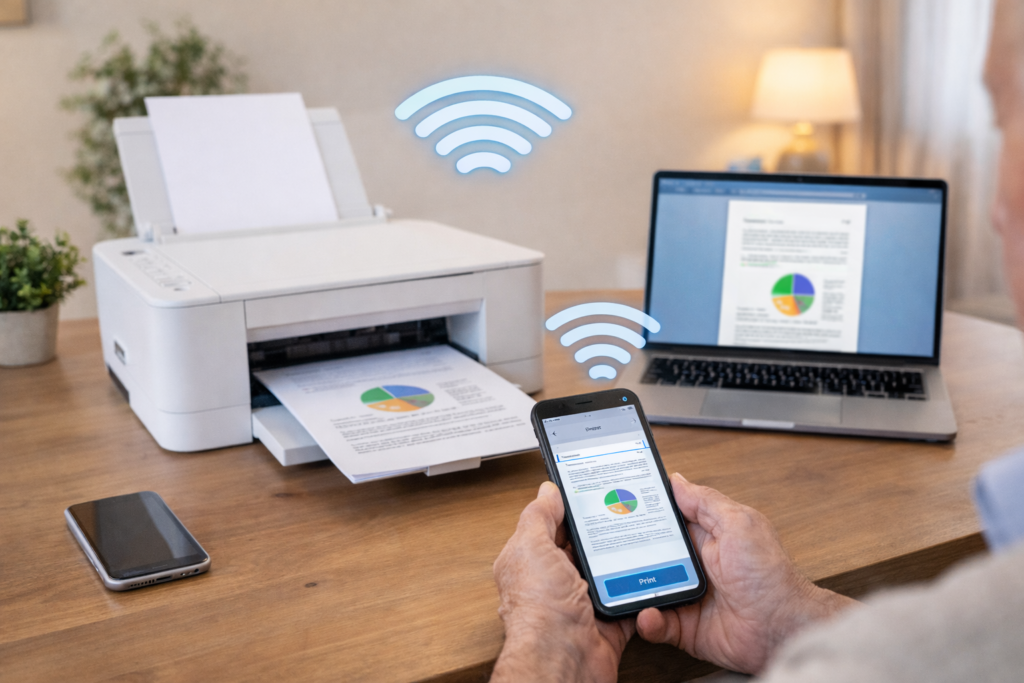
Printer problems are the most reliably frustrating technology issue in Melbourne homes — they always seem to happen when you urgently need to print something. The reason the same printer problem keeps coming back is usually that the wrong thing got fixed. Restarting the printer clears the symptom but not the cause. This guide identifies which specific problem you have and what actually resolves it permanently.
Problem 1 — Printer showing “offline” or “offline (error state)”
Why “offline” and “offline (error state)” are different problems
Most people treat all printer offline errors the same way — but there are two distinct variants that require different fixes. See our full printer offline guide for the complete diagnosis, but the key distinction:
Shows as “Offline”
The printer cannot be found on the network. Usually: printer has a new IP address after router restart, or is on a different Wi-Fi network than the computer. Fix: restart both printer and router, check the printer’s network settings on its display.
Shows as “Offline (Error State)”
Windows has detected an error and suspended communication. Often caused by a stuck print job or a corrupted Print Spooler. Fix: clear the Print Spooler — see Problem 2 below, as it’s almost always connected.
The “Use Printer Offline” setting trap: Windows has a setting called “Use Printer Offline” that manually puts a printer into offline mode. If someone accidentally clicked this (it’s easy to do by right-clicking the printer in the queue), the printer will always show offline regardless of whether it’s working. Check via: Settings → Bluetooth & devices → Printers & scanners → click printer → Open print queue → Printer menu → confirm “Use Printer Offline” is NOT ticked.
Problem 2 — Print jobs stuck in queue, won’t print or cancel
What’s happening: the Print Spooler service has become corrupted
The Print Spooler is a Windows background service that manages all print jobs. When a print job fails to send — particularly during a network dropout — the incomplete job can jam the spooler, causing all subsequent print jobs to stack up behind it. The printer appears to receive the jobs (they show in the queue) but nothing comes out, and the jobs can’t be deleted normally.
The Print Spooler reset — clears all stuck jobs permanently:
- Right-click the Start button → select Windows Terminal (Admin) or Command Prompt (Admin)
- Type:
net stop spooler→ press Enter → wait for “The Print Spooler service was stopped successfully” - Open File Explorer → navigate to:
C:\Windows\System32\spool\PRINTERS - Delete everything inside this folder (do NOT delete the folder itself — only its contents)
- Go back to the Command Prompt window → type:
net start spooler→ press Enter - Try printing again — the queue will be clear
If stuck jobs keep coming back regularly: the underlying cause is a network issue — the printer is losing its Wi-Fi connection mid-job, causing incomplete jobs to pile up. Fix the Wi-Fi connection to the printer first (static IP assignment, or moving the printer closer to the router), and the spooler problem will stop recurring.
Problem 3 — “Low ink” or “empty cartridge” warning on cartridges that aren’t empty
Why this happens — the chip issue with compatible/refilled cartridges
Printer manufacturers (particularly HP, Canon, and Epson) use microchips on their cartridges to track ink levels. When you use compatible (third-party) or refilled cartridges, the chip either isn’t present, reports the wrong level, or shows as empty immediately. The printer is reading the chip, not the actual ink — so the warning is about the chip’s data, not the ink.
If using genuine cartridges
Remove, firmly reseat, and reinstall the cartridge. If still showing empty: the cartridge contact points may need cleaning with a lightly damp cloth (the gold contacts on the cartridge). If still showing empty after this, the cartridge may be genuinely depleted despite looking full — ink runs out unevenly.
If using compatible/refilled cartridges
Many printers allow you to dismiss the warning and continue printing — look for “Proceed” or “OK” on the printer display. HP printers have a specific 5-second hold on the ink button to override. The printer will usually still print despite the warning.
The firmware update trap: HP in particular has used firmware updates to disable compatible cartridges — a printer that worked fine with compatible cartridges can stop working after an automatic update. If this has happened, the options are: disable automatic firmware updates (so future updates don’t block cartridges again) or switch back to genuine cartridges. We handle this during printer visits.
Problem 4 — Can’t print from iPhone, iPad, or Android phone
iPhone/iPad (AirPrint) and Android print differently — each needs a different fix
📱 iPhone / iPad (AirPrint)
Apple devices use AirPrint — a built-in wireless printing system that requires no app installation. If the printer doesn’t appear when you tap Print → Printer on an iPhone, the printer either doesn’t support AirPrint or isn’t on the same Wi-Fi network as the phone.
Check: Is the iPhone connected to the same Wi-Fi network as the printer? (Not 4G/5G.) AirPrint only works on the same local network. Most printers from 2015+ support AirPrint — check your model at Apple’s AirPrint list.
🤖 Android
Android uses the manufacturer’s app for wireless printing — HP Smart, Canon PRINT, Epson Smart Panel, or Brother iPrint&Scan. Download the right app for your printer brand from the Play Store.
Alternatively, Android supports Mopria Print Service (pre-installed on most devices) which works with many printers without a brand-specific app. Check Settings → Connected devices → Printing.
The most common reason phone printing fails: the phone is connected to the Wi-Fi network but the printer is connected to a different band (2.4GHz vs 5GHz) or a guest network. Some routers isolate devices between bands, preventing them from “seeing” each other even on the same network name. We check band assignment during printer visits.
Problem 5 — Multiple copies of the printer listed, printing to wrong one
Why this happens: every driver installation adds a new entry
Every time a driver is installed or Windows detects the printer on a new IP address, it creates a new printer entry — without removing the old one. Over time, a list like “HP OfficeJet 3830”, “HP OfficeJet 3830 (1)”, “HP OfficeJet 3830 (2)”, and “HP OfficeJet 3830 (copy 1)” appears. Printing goes to whichever one is set as default — which may not be the working one — leading to jobs appearing to vanish.
How to clean up duplicate printer entries:
- Go to Settings → Bluetooth & devices → Printers & scanners
- Identify which entry is the working printer — send a test print to each one to find out
- Remove all non-working duplicates: click each entry → Remove
- Right-click the working printer entry → Set as default printer
Prevent duplicate entries recurring: Assign the printer a fixed (static) IP address on your router. When a printer reconnects to the network, it normally gets a new IP address — which Windows treats as a new printer and creates a new entry. A fixed IP means the printer always has the same address, and Windows always finds the same entry. We configure this as standard during printer setup visits.
Frequently asked questions
Windows updates occasionally replace or corrupt printer drivers, particularly the driver that communicates with the print spooler. The printer hardware is fine — it’s the software link that’s been disrupted. The fix is usually reinstalling the printer driver. Remove the printer from Settings → Printers & scanners, download the latest driver from the manufacturer’s website, and reinstall. Our printer connection guide has brand-specific driver download links for HP, Canon, Epson, and Brother.
Not always — and replacing the cartridge first is often an expensive mistake. Horizontal lines through print (banding) are almost always clogged print heads, not empty cartridges. Run the printer’s built-in head cleaning cycle first (usually found in the printer software under Maintenance, or on the printer display under Setup → Maintenance → Head Cleaning). This often clears banding immediately without needing a new cartridge. If banding persists after two cleaning cycles, the print heads may need deeper cleaning or replacement. For blank pages specifically, see our printer printing blank pages guide.
Most printer problems aren’t hardware failures — they’re setup, driver, or network issues. If the printer was working before and has stopped, repair (really reconfiguration) is almost always worthwhile. If the printer is 8+ years old AND the hardware has physical problems (motor noise, paper feed failures, leaking ink), replacement makes more sense. A good all-in-one printer with reliable Windows 11 drivers costs $80–$150 new. We give an honest assessment during a visit before recommending either direction.
Yes — we configure both printing and scanning in the same visit. Scanning needs a separate driver to printing (the full-feature manufacturer package rather than the basic Windows driver), so it’s common for printing to work but scanning not to. We install the correct package, configure the scan button on the printer, and test both before leaving. For scanner-specific problems, see our scanner not working guide.
Yes — printer setup and troubleshooting is one of our most common jobs. We fix all five problem types described above, configure printing from computers, phones, and tablets, install the correct full-feature drivers (not just the basic Windows print driver), and assign the printer a static IP to prevent the duplicate entry problem recurring. Our rate is $89/hr with no call-out fee across all Melbourne suburbs. Call 0435 955 429 or book online.
Printer problems at home in Melbourne?
We fix offline errors, stuck jobs, driver issues, and configure printing from all your devices — computers, phones, and tablets. $89/hr, no call-out fee, all Melbourne suburbs.
Related printer guides
Serving all Melbourne suburbs — Doncaster, Camberwell, Box Hill, Glen Waverley, Kew, Hawthorn, Balwyn, Ringwood and all surrounding areas. View all service areas →
About Fixable: Friendly, patient on-site IT support across all Melbourne suburbs — printers, computers, Wi-Fi and more. Always in plain English. Call 0435 955 429 or visit fixable.au