
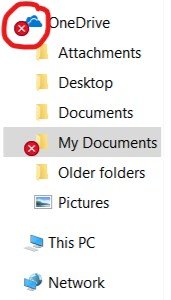
OneDrive is one of the most useful features of Microsoft 365 — when it’s working. When it stops syncing, the consequences range from mildly annoying (sync icon stuck spinning) to genuinely worrying (files not backed up, documents missing on a new computer). Understanding what the sync status icons actually mean is the first step to identifying which specific fix applies.
What the OneDrive sync icons mean
OneDrive shows small icons on files in your OneDrive folder and on the OneDrive cloud icon in the taskbar (bottom right of the screen). Each icon means something specific:
Storage full — the most common cause of syncing stopping
Free Microsoft accounts include 5GB of OneDrive storage. Microsoft 365 Personal and Family subscriptions include 1TB per person. If your OneDrive storage is full (or nearly full), syncing stops — new files won’t upload, and the orange warning icon appears.
Check your OneDrive storage:
- Click the OneDrive cloud icon in the taskbar → click the Settings gear icon → Storage
- Or go to onedrive.live.com in a browser → sign in → the storage bar shows at the bottom left
If storage is full — what to do:
Option 1 — Free up space
Go to onedrive.live.com → find large files to delete (photos, videos, old documents you don’t need backed up). The Recycle Bin in OneDrive also counts toward storage — empty it after deleting files.
Option 2 — Upgrade storage
Microsoft 365 Personal (~$109/year) includes 1TB of OneDrive storage — enough for tens of thousands of photos. See our Microsoft 365 guide for subscription options.
Silent sign-out — OneDrive stops syncing after updates or new computer setup
One of the most confusing OneDrive sync problems: everything was working, then it stopped — but there’s no error message. The orange warning icon appears, you click OneDrive in the taskbar, and it says “Sign in to sync your files.” Windows updates or new computer setup can silently sign OneDrive out of the Microsoft account, causing all syncing to pause without a clear notification.
Fix — sign back in to OneDrive:
- Click the OneDrive cloud icon in the taskbar
- Click Sign in
- Enter your Microsoft account email address (the one associated with your Microsoft 365 subscription)
- Enter your password and complete any two-factor verification
- OneDrive will reconnect and resume syncing — this may take some time if many files need to sync
Can’t find the OneDrive icon in the taskbar? Click the up arrow (^) in the taskbar to show hidden icons — OneDrive may be there. If it’s not showing at all: search “OneDrive” in the Start menu and open it. On a new computer, OneDrive may need to be set up from scratch if it wasn’t configured during the initial setup.
File name and path errors — the problem most people miss
OneDrive can’t sync files that have certain characters in their name, files that are open in another program, or files whose full folder path exceeds Windows’ 260-character limit. These cause red X icons on specific files without affecting the rest of the sync.
Characters OneDrive can’t sync
File and folder names cannot contain: \ / : * ? " < > | — or end with a space or period. Files named things like “Invoice: March.docx” or “Report 2024?.pdf” will fail to sync. Rename the file removing the offending character to fix it.
File open in another program
OneDrive can’t sync a file that’s currently open and being edited. Close Word, Excel, or whatever program has the file open — OneDrive will then sync the saved version. This is why OneDrive sometimes shows a red X on a document you’re currently working on.
Path too long (260-character limit)
Windows has a built-in limit of 260 characters for a file’s full path (e.g. C:\Users\Jane\OneDrive\Documents\Work\Projects\2024\Q3\Reports\Final\Version3\report.docx). Files nested deeply in many folders can hit this limit. The fix: shorten folder names, reduce folder nesting depth, or move the file to a shallower location. Windows 10 and 11 can have this limit removed via a registry setting — we handle this during visits.
OneDrive keeps failing — the reset command
If OneDrive has persistent sync errors that none of the above fixes have resolved, a full reset clears all cached credentials and configuration and starts fresh. This is the most effective fix for stubborn sync problems. Note: the reset does not delete your files — they remain in OneDrive online. The reset only clears the local sync configuration.
OneDrive reset — step by step:
- Press Windows key + R to open the Run dialog
- Type or paste the following exactly and press Enter:
%localappdata%\Microsoft\OneDrive\onedrive.exe /reset - The OneDrive taskbar icon will disappear — this is normal. Wait 2–3 minutes.
- If the icon doesn’t reappear after 3 minutes, press Windows + R again and type:
%localappdata%\Microsoft\OneDrive\onedrive.exeand press Enter to restart it manually - OneDrive will open the setup screen — sign in with your Microsoft account
- Choose which folders to sync (Documents, Photos, Desktop) — OneDrive will then re-sync all files
After the reset: OneDrive needs to re-download or re-verify all synced files, which can take some time depending on how many files you have. Leave the computer on and connected to the internet while it completes. All your files are safe in OneDrive online throughout this process.
Frequently asked questions
No — “online only” files (shown with a cloud icon) are safely stored in OneDrive on Microsoft’s servers. They’re not lost, they’re just not downloaded to your computer. Connect to the internet and click the file — it will download and open. To make it permanently available offline: right-click the file or folder → “Always keep on this device.” This downloads it to the computer so it’s accessible even without internet. We configure this for important folders during setup visits.
If OneDrive is set to “Files On-Demand,” files that have been synced to the cloud and then marked as online-only will disappear from File Explorer when you’re offline or if the computer was restarted and their status changed. They’re not gone — they’re in OneDrive online. Sign in to onedrive.live.com to confirm they’re there. To prevent this confusion, right-click the OneDrive folder in File Explorer → Settings → uncheck “Save space and download files as you use them” — this keeps all files on the device.
“Processing changes” stuck for more than 30 minutes usually means a large file is stuck in the upload queue, a file is open in another program, or a network issue is blocking the upload. Check: close all open Office documents, check if any extremely large files (video files, large ZIP archives) are in the OneDrive folder — large files can block the queue. If a large file is blocking: right-click the OneDrive icon → Pause sync → move the large file out of the OneDrive folder → Resume sync → the remaining files will sync. Then decide whether the large file should be in OneDrive at all.
You don’t have to use it — OneDrive can be unlinked without deleting any files already in the cloud. If you find the constant sync activity, storage warnings, and cloud icons confusing, it’s completely reasonable to turn it off. Right-click the OneDrive taskbar icon → Settings → Account → Unlink this PC. Your files already in OneDrive remain online; files on the computer remain on the computer. The computer just stops syncing. The alternative is keeping OneDrive but configuring it properly so only the folders you want are synced. We configure this to suit individual preferences during home visits.
Yes — OneDrive configuration and troubleshooting is a common part of new computer setup visits and Microsoft 365 setup visits. We check storage, resolve sign-in issues, fix file conflicts, configure which folders sync and which stay local, and ensure files are safely backed up before leaving. $89/hr, no call-out fee, all Melbourne suburbs. Call 0435 955 429 or book online.
OneDrive not syncing in Melbourne?
We fix the sync, confirm your files are safe, configure which folders sync, and explain how it all works. $89/hr, no call-out fee, all Melbourne suburbs.
Related guides
Serving all Melbourne suburbs — Doncaster, Camberwell, Box Hill, Glen Waverley, Kew, Hawthorn, Balwyn, Ringwood and all surrounding areas. View all service areas →
About Fixable: Friendly, patient on-site IT support across all Melbourne suburbs. Always in plain English. Call 0435 955 429 or visit fixable.au