
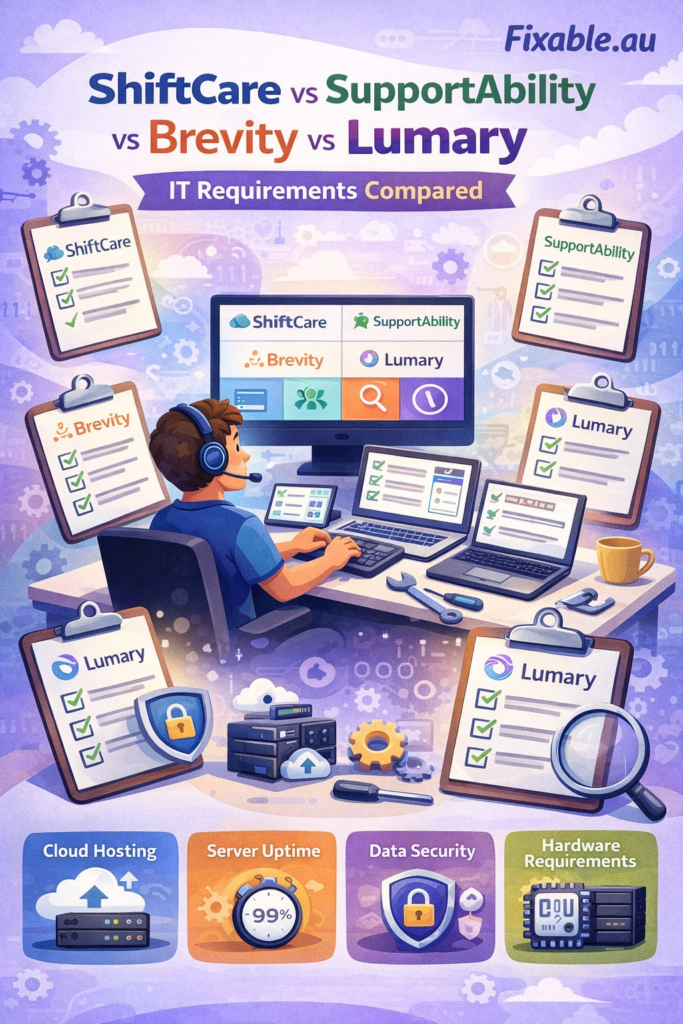
ShiftCare vs SupportAbility vs Brevity vs Lumary —
IT Requirements Compared
What devices do you need? What internet speed? How do you set up MFA? What breaks most often — and how to fix it? The IT guide no one else has written for NDIS providers.
ShiftCare is easiest to set up (mobile app, low IT overhead). SupportAbility is strongest for compliance (ISO 27001, browser-only). Brevity is best for small teams and plan managers (widest accounting integrations). Lumary is most powerful for large providers (Salesforce-based, needs IT expertise). All four require reliable NBN, MFA on every account, and individual logins per staff member.
When an NDIS provider buys new software, the focus is always on features, pricing and compliance. The IT requirements come last. Then go-live day arrives and something doesn’t work — staff can’t log in, the app won’t load on the house tablet, or the internet is too slow for the portal to respond.
This is the guide to read before you buy, not after. We cover device requirements, internet speed, MFA setup, the most common IT problems with each platform, and what your setup needs to look like before go-live. We have set up all four platforms across SIL houses and support coordination offices in Melbourne.
Quick IT Comparison — All Four Platforms
A fast reference before we go into detail on each one.
| Requirement | ShiftCare | SupportAbility | Brevity | Lumary |
|---|---|---|---|---|
| Platform type | Web + mobile app | Web browser only | Web + mobile app | Web + mobile (Salesforce) |
| Mobile app | ✅ iOS + Android | Browser only | ✅ iOS + Android | ✅ Salesforce app |
| Australian data hosting | ✅ Yes | ✅ Yes | ✅ Yes | ✅ Yes (AWS) |
| MFA supported | ✅ Yes | ✅ Built-in + IP allowlist | ✅ Yes | ✅ Salesforce MFA (enforced) |
| Security certification | Not stated | ✅ ISO 27001 | Not stated | ✅ Via Salesforce |
| Accounting integration | Xero + MYOB | Xero + MYOB | Xero / MYOB / QuickBooks | Custom integrations |
| Pricing model | Per staff (~$9/mo) | Quote required | Per client (from $44.90/mo) | Enterprise (quote) |
| IT complexity | Low | Medium | Low–Medium | High |
| Best suited for | 5–150 staff, SIL + home care | Compliance-focused providers | Small teams, plan managers | Large providers, 50+ staff |
Device Requirements
- ✓Any Windows PC or Mac — modern browser
- ✓iOS (iPhone/iPad) — dedicated app
- ✓Android phones and tablets — app
- ✓Chromebooks — web browser
Internet Requirements
- ✓Minimum: 5 Mbps per active user
- ✓Recommended: 25+ Mbps for a SIL house
- ✓Mobile data works for the app when away
- !Staff network must be separate from residents’
IT Setup Checklist
- 1Download the ShiftCare app on every staff device — do NOT rely on the web browser on phones
- 2Each staff member must have their own individual login — never create shared accounts
- 3Enable push notifications on each device — shift alerts won’t work without them
- 4Enable location services — required for clock-in/clock-out geo-verification
- 5Keep the app updated — old versions cause login failures
Common IT Problems
- ✕App won’t load on SIL house tablet — update to latest version
- ✕Clock-in shows wrong location — check location permissions
- ✕Shift notes not saving — poor Wi-Fi, check signal strength
- ✕Staff can’t log in — account not yet set up by admin
IT Strengths
- ✓Easiest of the four to set up and troubleshoot
- ✓Mobile app well-designed for field staff
- ✓Xero integration is reliable
- ✓No special browser configuration needed
Important IT note: SupportAbility is browser-based — there is no dedicated mobile app. Staff access it through the browser on their phone, tablet or computer. This means browser choice, browser version and a reliable internet connection are more important than with other platforms. Fixable recommends Google Chrome (latest version) as the primary browser for all SupportAbility users.
Device Requirements
- ✓Windows PC — Chrome or Edge (latest)
- ✓Mac — Chrome or Safari (latest)
- ✓iPad — Chrome or Safari via browser
- ✕Internet Explorer — not supported at all
Security Features
- ✓ISO 27001 information security certified
- ✓MFA built into all accounts
- ✓IP address allowlisting available
- ✓Role-based access controls — granular
IT Setup Checklist
- 1Install Google Chrome (latest) as default on every device that will access SupportAbility
- 2Set up MFA for every staff account — each person needs an authenticator app on their phone before first login
- 3Configure role-based permissions per staff member — SupportAbility has granular controls covering which services each person can see
- 4If using IP allowlisting — whitelist your office IP before enabling this feature, or field staff will be locked out
- 5Bookmark the SupportAbility URL as a pinned Chrome tab — staff trying to Google their way back in can land on phishing sites
Common IT Problems
- ✕MFA locked out — staff changed phones without transferring authenticator
- ✕IP allowlist blocking field staff — allowlist config issue
- ✕Slow loading — browser cache full, clear cookies and cache
- ✕Session keeps expiring — browser blocking cookies from SupportAbility
IT Strengths
- ✓Strongest built-in security of all four platforms
- ✓ISO 27001 — verifiable for NDIS audits
- ✓Privacy barriers between services well-implemented
- ✓Nightly Australian-hosted backups, 30-day retention
Device Requirements
- ✓Windows PC or Mac — modern browser
- ✓iOS app (iPhone + iPad)
- ✓Android app
- ✓Any device with Chrome / Firefox / Safari
Integrations
- ✓Xero, MYOB, QuickBooks
- ✓NDIS myplace provider portal
- ✓PRODA / myID for bulk claims
- ✓Support at Home (aged care)
IT Setup Checklist
- 1Install the Brevity app on staff mobile devices before first use — the app and web version have slightly different features
- 2Configure your Xero / MYOB / QuickBooks integration before entering any client data — retrofitting accounting connections creates reconciliation headaches
- 3Set up PRODA / myID access for all billing staff before go-live — this is separate from Brevity login and a common bottleneck
- 4Keep app and browser version updated — stability issues were reported after the 2024 PACE migration and most resolve with updates
Post-PACE migration note: User reviews from 2024–2025 report stability and performance issues following Brevity’s PACE integration. If you’re experiencing slowdowns, bulk claim failures or OCR issues — clear your browser cache first, then contact Brevity support with your browser version included in the ticket. Most issues resolve with a browser update or cache clear.
Common IT Problems
- ✕Bulk claims failing — PRODA / myID session expired
- ✕Slow app performance — PACE migration legacy issues
- ✕Invoice sync errors — Xero token needs refreshing
- ✕Login issues — browser cookies / cache conflict
IT Strengths
- ✓Widest accounting integration (Xero / MYOB / QuickBooks)
- ✓NDIS Digital Partner — pricing guide built-in
- ✓Good mobile app for field support workers
- ✓Lowest entry price of the four platforms
Platform note: Lumary is built on Salesforce — the world’s largest CRM. This gives it enterprise-grade security and enormous customisation capability. It also means setup is significantly more complex than the other three, and getting the most from it requires either an internal Salesforce developer or an implementation partner. For small providers, this is overkill. For large providers managing 50+ staff and hundreds of participants, it is the most powerful option available.
Device Requirements
- ✓Windows PC or Mac — Chrome / Edge
- ✓iOS / Android via Salesforce mobile app
- ✓Any modern browser for web access
- !Older / slower devices struggle — Salesforce is demanding
Internet Requirements
- !Higher than other platforms — Salesforce is data-heavy
- ✓Minimum: 10 Mbps per active user recommended
- ✓NBN 100 or higher for multi-user office environments
- ✕Satellite internet not recommended — latency too high
IT Setup Checklist
- 1Engage a Lumary implementation partner or ensure internal Salesforce expertise — setup without this takes months and often requires expensive rework
- 2Set up Salesforce MFA for every user — Salesforce enforces MFA at platform level and will lock out users who haven’t configured it
- 3Configure profile-based permissions carefully — incorrect setup leads to staff accessing records they shouldn’t
- 4Ensure all devices are within last 4 years — Salesforce is noticeably slow on older hardware
- 5Set up the PRODA / myID integration early — it’s one of Lumary’s strongest features but takes time to configure correctly
Common IT Problems
- ✕Slow performance on older PCs — hardware upgrade needed
- ✕MFA lockout — Salesforce enforces this strictly
- ✕Permission errors — profile misconfiguration
- ✕Custom workflows breaking — Salesforce platform updates
IT Strengths
- ✓Enterprise-grade Salesforce security infrastructure
- ✓Highly customisable for complex provider workflows
- ✓AWS Australian data centres — NDIA compliant
- ✓Best reporting and analytics of all four platforms
The IT Requirements All Four Platforms Share
Every single one of these platforms is cloud-based. These three things are non-negotiable regardless of which platform you choose.
Reliable Internet
NBN 50+ recommended for any SIL house or office running NDIS software. 25 Mbps minimum. Staff and resident networks must be separate.
MFA on Every Account
Multi-factor authentication must be enabled for every staff login. This is a Privacy Act and NDIS Practice Standards requirement — not optional.
Modern Browsers
Chrome (latest), Edge (latest) or Safari (latest). Internet Explorer is not supported by any of these platforms and must be uninstalled.
Fixable can set up all three of these across your SIL house or office before go-live — internet speed tested, MFA configured on every staff device, browsers updated and set as default. NDIS Worker Screening Cleared. Call 0435 955 429 to discuss your go-live timeline.
Frequently Asked Questions
-
ShiftCare. It has the most intuitive setup, the best mobile app for field staff, and the lowest IT overhead. For a SIL house with rotating support workers who need to clock in/out and log shift notes, ShiftCare is the right fit. SupportAbility is more powerful for compliance documentation but requires more IT configuration. Lumary is overkill for most SIL setups.
-
Yes. MFA setup is one of the most common requests from NDIS providers. Fixable visits your office or SIL house, sets up an authenticator app on each staff member’s phone, and configures MFA in the NDIS software platform. A recovery process is also set up so that if someone changes phones, they don’t get permanently locked out. Call 0435 955 429 to discuss.
-
Plan for data export from Brevity before cancelling — download all client records, shift notes and invoices in CSV/PDF format. Install ShiftCare on all devices fresh, create individual accounts for each staff member, and run a parallel test period (both systems live) for at least 2 weeks before cutting over. The most common migration mistake is cancelling the old system before confirming all historical data has been transferred.
-
Technically possible but creates privacy and security risks. If a staff member’s personal phone is lost or stolen, participant data could be exposed. Best practice is to either provide organisation-owned devices for staff who access participant records, or implement a formal BYOD policy requiring device PIN protection, remote wipe capability, and MFA — all configured and verified before allowing personal device access.
-
Yes — this is one of our most requested services for NDIS providers. Fixable visits before go-live, sets up all staff devices with the platform installed, configures MFA on every account, ensures your Wi-Fi is adequate, tests the PRODA/myID integration where applicable, and creates a troubleshooting reference for your team. We work with all four platforms. NDIS Worker Screening Cleared. Call 0435 955 429 to discuss your go-live timeline.
More Resources for NDIS Providers
NDIS Technology Support Melbourne
In-home tech support for NDIS participants — how it works, pricing, and how to refer.
AT Mentoring Line Item 15_300_0103_1_3
Plain-English breakdown of the AT Mentoring code for Support Coordinators and Plan Managers.
What Does the NDIS Cover for Technology?
Full breakdown of NDIS tech coverage — what is funded, what is not, and how to claim.
Got a Go-Live Coming Up?
Fixable sets up all four platforms for NDIS providers across Melbourne’s eastern and inner suburbs. We get there before your go-live, configure everything, and make sure nothing breaks on day one.