
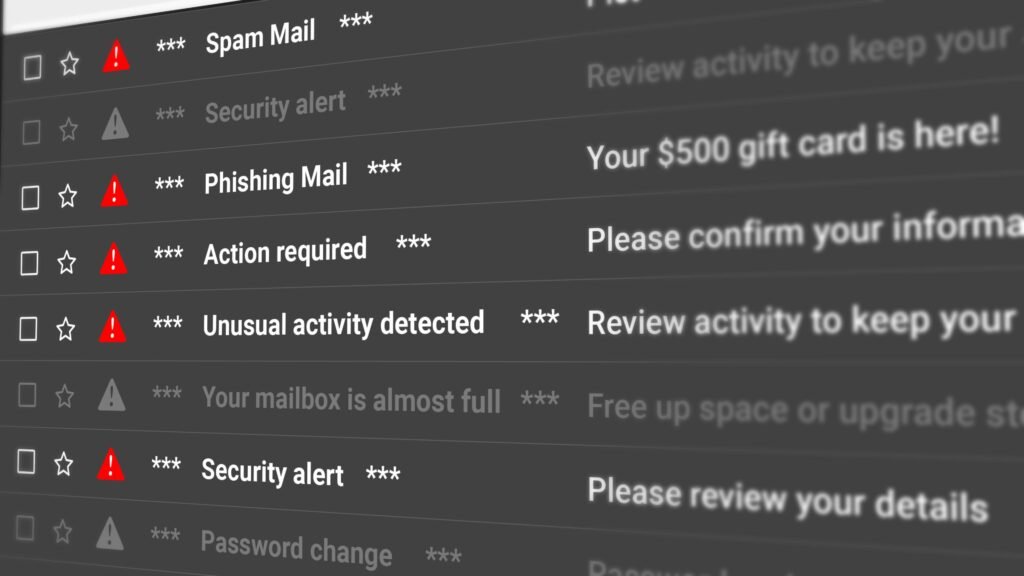
An email account being hacked is one of the most serious tech security incidents a Melbourne household can face — because your email isn’t just a place to receive messages. It’s the key to everything else. Your bank, your MyGov, your Medicare, your superannuation, your social media — almost every other account can be accessed by whoever controls your email, through the “forgot password” feature. Acting quickly and correctly makes the difference between a bad half-hour and weeks of ongoing damage.
This guide covers the three different scenarios people find themselves in, the immediate steps to take regardless of which one applies, and recovery instructions specific to each email provider. It also connects to our virus and scam removal guide — because sometimes email hacks and computer infections happen together.
Which scenario are you in? The response is different for each
You can still log in, but something seems wrong
Contacts are saying they received strange emails from you. You’re seeing emails in your Sent folder you didn’t write. Logins from unfamiliar locations are showing in your account activity. You still have access. → Change your password immediately, then follow the full lock-down steps below. Don’t wait — the attacker still has access until you change the password.
You’re locked out — password no longer works
Your password is being rejected. The attacker may have changed it. You need to use the account recovery process to regain access. → Use “Forgot password” immediately — don’t delay. The longer you wait, the more time the attacker has to change recovery details (phone number, backup email) which makes recovery much harder. See the provider-specific recovery steps below.
Locked out AND recovery options have been changed
The password doesn’t work, and the “Forgot password” process sends a code to a phone number or backup email you don’t recognise — meaning the attacker has already changed your recovery details. → This requires working through the account provider’s identity verification process directly. See the provider-specific steps below — each provider has a different path for this. This is the most complex scenario and where professional help saves hours of frustration.
The domino effect — your other accounts are at risk too
This is the critical thing most people don’t realise immediately: whoever has access to your email account can reset the password for virtually every other account linked to it. Your bank’s “forgot password” sends a reset link to your email. So does MyGov, Medicare, your superannuation, streaming services, and anything else you’ve ever registered with that email address.
While you’re working to recover your email — do this on your phone right now:
- Call your bank and tell them your email has been hacked — they will flag your account for monitoring
- Check your MyGov account (on your phone with mobile data, not using the compromised computer) for any changes
- If you have internet banking open in a browser on the compromised computer — log out and change that password from your phone
Don’t wait until you’ve recovered the email to do these steps — the domino can fall very quickly. Financial institutions like banks and ATO take immediate reports seriously and can freeze suspicious activity. If your computer was involved in the hack, see our virus and malware removal guide for what to check and secure on the device itself.
Recovery steps by email provider
After recovery — lock it down properly
Regaining access is just the first step. An email account that was compromised once is more likely to be targeted again — because the attacker may have sold your details, or your password may appear in a data breach list that other attackers use. These steps turn a recovered account into a properly secured one.
1. Set a strong, unique password
Use a password that’s at least 12 characters, contains a mix of letters, numbers, and symbols, and is not used on any other account. A good method for something memorable: three unrelated words plus numbers, e.g. Lamp47Bicycle!Fence. Write it in a notebook kept at home — this is safer than reusing a simple password everywhere.
2. Turn on two-factor authentication (2FA)
Two-factor authentication means even if someone knows your password, they can’t log in without a code sent to your phone. This is the single most effective protection against email account compromise.
- Gmail: myaccount.google.com → Security → 2-Step Verification → Get started → follow the prompts to link your phone number
- Outlook/Hotmail: account.microsoft.com → Security → Two-step verification → Set up two-step verification
- BigPond/Telstra: my.telstra.com.au → Account settings → Security → enable Two-Factor Authentication
3. Check and update recovery details
Verify that the recovery phone number and backup email address in your account settings are yours and current. These are what providers use to verify your identity if you’re ever locked out again — make sure they’re accurate. If the phone number registered is an old number you no longer have, update it now while you still have access.
4. Check for forwarding rules and filters
Hackers often set up email forwarding rules that quietly send copies of all your emails to their address — even after you’ve changed your password. In Gmail: Settings (cog icon) → See all settings → Forwarding and POP/IMAP → check for any forwarding addresses you didn’t set up. In Outlook: Settings → Mail → Forwarding → check. Delete any you don’t recognise immediately.
5. Change passwords on accounts that used this email for login
Now that the email is secured, change passwords on your bank, MyGov, Medicare portal, superannuation, and any other account where this email was the login. Even if those accounts weren’t directly accessed, the risk window was open and updating passwords closes it. If you use the same password on multiple sites — this is the moment to stop doing that.
Check if your email was in a data breach
Sometimes email accounts are compromised not through any mistake on your part — but because a website or service you registered with had a data breach, and your email and password were exposed in that breach. These stolen credentials are sold on criminal forums and used to try to access email accounts.
Check Have I Been Pwned: Go to haveibeenpwned.com — a free, legitimate security tool run by respected security researcher Troy Hunt. Enter your email address and it will tell you whether your email and password have appeared in any known data breaches.
If your email appears in breach results: the specific breach name and date will show. Change the password on any account where you used that password. This site is safe to use — it doesn’t store your email address and is recommended by the Australian Cyber Security Centre.
Frequently asked questions
Two possibilities. (1) Your account has been accessed and the attacker sent spam from it — check your Sent folder for emails you didn’t send. If you find them, follow the Scenario A steps above. (2) Your email address is being “spoofed” — the emails appear to come from your address but were actually sent from elsewhere. Email spoofing is technically different from account compromise — you don’t have to change your password, but there’s no straightforward way to stop it either. Check your Sent folder: if nothing there, it’s likely spoofing. If emails are in Sent that you didn’t write, your account is compromised.
Google’s account recovery works best from a trusted device and familiar location. If you’re using a new computer at a new location, Google may not recognise you. Try the recovery from your phone (especially if you’ve previously accessed Gmail on that phone), or from your old computer if it still works. Also try at different times of day — Google’s automated system sometimes gives different results. If all else fails, Google has a form where you can appeal for manual review, but success rates are low without substantial verification information. This is one of the most complex situations we help with during home visits — it often takes patience and trying multiple approaches.
Not necessarily — they’re related but separate issues. Email accounts are most commonly hacked through password reuse (you used the same password on a site that had a data breach), phishing (you clicked a fake login page and entered your password), or credential stuffing (automated attacks trying leaked passwords). A computer virus can also steal passwords, but it’s one cause among several. It’s always worth running a scan with Windows Security or having the computer checked — see our virus removal guide — but a clean scan doesn’t necessarily explain the hack if the cause was a data breach or phishing.
The four most common ways: (1) Data breach — a website you registered with was hacked and your email/password combination was leaked. Check haveibeenpwned.com. (2) Password reuse — you used the same password on multiple sites, one was breached, and attackers tried it on your email. (3) Phishing — you clicked a fake login page (disguised as your bank, Australia Post, ATO, etc.) and entered your email and password, which was captured by the attacker. (4) Malware — a keylogger or password-stealing program on the computer captured it. Checking haveibeenpwned.com usually tells you which category applies.
Yes — we handle Gmail, Outlook/Hotmail, and BigPond/Telstra account recovery during home visits across all Melbourne suburbs. We work through the recovery process with you, check for forwarding rules and other backdoors, enable two-factor authentication, check the Have I Been Pwned database, and advise on securing other accounts that may have been at risk. We also check the computer for any malware that may have contributed to the compromise. Our rate is $89/hr with no call-out fee. For seniors we take extra time to explain everything clearly — see our seniors IT support page. Call 0435 955 429.
Need help recovering and securing your email?
We recover Gmail, Outlook, and BigPond accounts, stop the domino effect on other accounts, check for forwarding rules, and lock everything down with 2FA. $89/hr, no call-out fee, all Melbourne suburbs.
Related guides
Serving all Melbourne suburbs — Doncaster, Camberwell, Box Hill, Glen Waverley, Kew, Hawthorn, Balwyn, Ringwood and all surrounding areas. View all service areas →
About Fixable: Friendly, patient on-site IT support across all Melbourne suburbs. NDIS Worker Screening cleared. Always in plain English. Call 0435 955 429 or visit fixable.au