
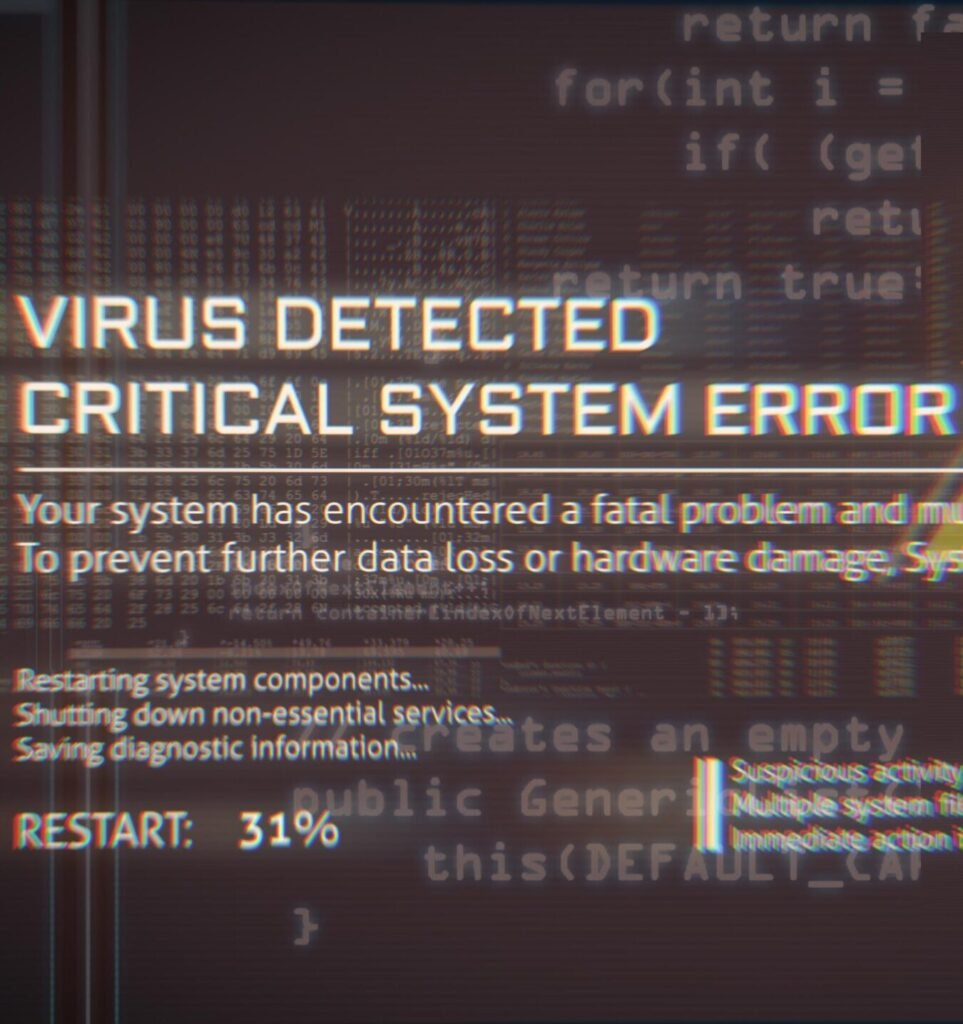
A scary message on your computer screen saying “VIRUS DETECTED — CALL NOW” or “Your computer has been compromised” is one of the most alarming things to see — especially for seniors who use their computer for banking and personal communications. Before doing anything else, the most important thing to understand is this: most of these warnings are not real virus alerts. They are scam popups — fake messages designed to frighten you into calling a phone number or clicking a button. Knowing the difference changes everything you do next.
Real virus or scam popup? How to tell the difference
🚨 Almost certainly a SCAM POPUP
- Shows a phone number to call
- Claims to be from “Microsoft,” “Apple,” or “Telstra”
- Makes an alarm sound or loud beeping
- Appeared while browsing a website
- Has a button that says “Fix Now” or “Call Support”
- Fills the whole screen and seems impossible to close
- Says your personal files have been “locked” or “encrypted”
⚠️ More likely a REAL THREAT
- Warning comes from Windows Security or Windows Defender (no phone number)
- Files you know existed have disappeared or won’t open
- Computer became extremely slow overnight with no explanation
- You clicked a link in an unexpected email and immediately noticed changes
- Contacts say they received emails from you that you didn’t send
- New programs or browser toolbars appeared that you didn’t install
The critical rule: Microsoft, Apple, Telstra, and your bank never contact you through a pop-up on your computer screen. They do not send alerts with phone numbers to call. Any popup showing a phone number — no matter how official it looks — is a scam. Do not call the number. Do not click anything in the popup. See how to close it safely below.
What to do in the first 30 minutes
If it’s a scam popup: close the browser (don’t click inside the popup)
Don’t click “X,” “Cancel,” or anything inside the popup — scam popups are designed so every click inside them does something harmful. Instead: press Alt + F4 on Windows to force-close the active window, or right-click the browser in the taskbar at the bottom of the screen and choose “Close window.” On Mac: press Command + Q to quit the browser entirely. If the computer is frozen, hold the power button for 5 seconds to turn it off.
Don’t call any phone number shown on screen
Numbers shown in scam popups connect to call centres — usually overseas — that impersonate tech support. They will ask you to install remote access software so they can “fix” your computer. What they’re actually doing is accessing your files, installing real malware, and often asking for payment or bank details. Once you close the popup, the immediate danger is gone. The popup itself didn’t install anything on your computer — it was just a webpage.
Run a scan with Windows Security
Press Start → search “Windows Security” → open it → Virus & threat protection → Quick scan. This runs a scan using Windows Defender — the legitimate built-in Microsoft security tool. If it finds something, it will quarantine it automatically. A clean result here doesn’t mean you’re definitely fine — but it’s a good first check. Do not install anything off the internet claiming to be a virus scanner — many of these are the actual malware.
Check your browser extensions for anything unfamiliar
Many browser-based threats install themselves as extensions. In Chrome: Settings → Extensions. In Edge: Settings → Extensions. Look for anything you didn’t install and remove it. Common signs of a malicious extension: it appeared recently, it asks for permission to “read and change all data on websites you visit,” or you don’t recognise it at all.
You called the number and gave someone remote access — do this now
⚠️ This is the most serious scenario. Act immediately.
If you called a number from a scam popup and allowed someone to remotely access your computer — they may have installed malware, stolen stored passwords, copied files, or accessed your online banking. Do not wait. Do not use the computer for anything. Follow these steps now.
Signs of an actual virus — and what to do
If the indicators above suggest a real infection rather than a scam popup, here’s what’s typically happening and what it means:
Browser hijacker
Symptoms: browser homepage changed to something unfamiliar, new toolbars appeared, searches redirecting to different results pages. Usually installed via a “free software” download where the browser hijacker was bundled in the installer. Fix: remove suspicious browser extensions, reset browser settings (Settings → Reset settings → Restore settings to their original defaults in Chrome), and run a Windows Defender scan. As covered in our slow computer guide, browser hijackers also noticeably slow down performance.
Adware
Symptoms: constant pop-up ads even on websites that shouldn’t have them, ads appearing on the desktop, browser loading slowly. Adware generates advertising revenue by forcing ads onto your screen. It’s annoying and a privacy concern but usually doesn’t steal data directly. Windows Defender cleans most adware — for stubborn cases, Malwarebytes Free (a legitimate free tool) is the best second scanner. The battery draining unusually fast on a laptop is sometimes caused by adware running constantly in the background.
Trojan / spyware
Symptoms: contacts receiving emails you didn’t send, online accounts showing login activity from unknown locations, unexplained charges. Trojans disguise themselves as legitimate software to gain access. Spyware silently records keystrokes and sends data to attackers. If you suspect this — change all important passwords from a different device first, then get the computer checked. Don’t use it for banking until it’s been cleaned. Trojans can also cause significant laptop overheating by running hidden processes that use the CPU constantly.
Ransomware
Symptoms: files have been renamed with strange extensions and won’t open, a message demands payment (often in cryptocurrency) to unlock them. This is the most serious type. Don’t pay — payment doesn’t guarantee file recovery and funds criminal operations. Disconnect from the internet immediately. We can assess whether file recovery is possible and remove the ransomware. Regular backups to an external drive (disconnected from the computer when not in use) are the only complete protection against ransomware.
Do you actually need paid antivirus software?
This question comes up at almost every security-related visit we do in Melbourne homes. The honest answer: for most home users, Windows Defender (now called Windows Security) is sufficient protection — and paying for a third-party antivirus is generally not necessary.
Windows Defender / Windows Security
- ✓ Built into Windows 10 and 11 — free
- ✓ Regularly updated by Microsoft
- ✓ Runs automatically in background
- ✓ Consistently rates well in independent tests
- ✓ No subscription required
Paid antivirus (Norton, McAfee, etc.)
- ~ Some extra features (VPN, password manager)
- ~ Often slows down older computers
- ✗ Annual subscription cost ($50–$100+)
- ✗ Frequent upsell prompts and popups
- ✗ Often conflicts with Windows Defender
We never recommend paying for third-party antivirus during a home visit unless there’s a specific reason. Ensure Windows Security is turned on (search “Windows Security” → open it → all icons should be green) and that Windows is up to date — these two things provide solid baseline protection. According to the Australian Cyber Security Centre’s guidance, keeping software updated and using the built-in security tools is the most effective protection for home users.
How to avoid it happening again — what actually helps
Keep Windows and your browser updated
The vast majority of successful malware attacks exploit known vulnerabilities that have already been patched in updates. An up-to-date computer running Windows 11 with Windows Security enabled is genuinely difficult to infect through normal browsing. Updates are the single most effective protection available.
Recognise phishing emails
Most real infections come from clicking links in emails, not from browsing. Signs of a phishing email: unexpected “you need to verify your account” messages, urgent language (“your account will be closed”), slightly wrong email addresses (like @commonwea1th.com instead of @commonwealth.com.au), and links that don’t match the sender. When in doubt — don’t click. Go directly to the website by typing the address yourself. Our seniors and NDIS clients across Melbourne regularly ask us to explain this — see our seniors IT support page for how we cover online safety during visits.
Keep an offline backup
An external hard drive that is disconnected from the computer when not in use is the only complete protection against ransomware. Cloud backup alone is not sufficient — ransomware can encrypt synced cloud files too. Plug in, run backup, unplug. Once a week is ideal. Our file transfer guide covers backup methods in more detail.
Use strong, unique passwords and two-factor authentication
If one account is compromised and you use the same password elsewhere, every account with that password is at risk. Use a different password for banking than for email than for social media. For seniors, we recommend writing passwords in a notebook kept at home — this is safer than reusing passwords, and far simpler than a password manager for those who find technology stressful.
Frequently asked questions
It depends on how you paid. If by credit card — contact your bank immediately and report it as fraud. Most banks can attempt a chargeback for card transactions made under false pretences. If by bank transfer — contact your bank’s fraud team immediately. Transfers are harder to reverse but banks have procedures for this. If by gift cards (iTunes, Google Play, etc.) — unfortunately very difficult to reverse, as this is why scammers prefer this payment method. Report it to the ACCC at scamwatch.gov.au regardless of payment method.
Almost certainly not — this is a scam popup delivered through a malicious ad on the website you visited. The popup is just a webpage, not a program. Simply closing the browser (use Alt+F4 or Command+Q) removes it completely. Your computer has not been infected by seeing the popup. Run a quick Windows Security scan for peace of mind, but there is very likely nothing to worry about. The ad system on websites like YouTube is generally well-protected, but occasionally a malicious ad gets through briefly before being removed.
Yes — less commonly than Windows PCs, but Mac malware exists and is increasing as Macs become more popular. Macs have built-in security (Gatekeeper, XProtect) that provides good baseline protection. The same advice applies: keep macOS updated, don’t download software from unknown sources, and be suspicious of popups claiming your Mac has a virus. Apple’s own security software on Mac doesn’t include a phone number to call — if you see one, it’s a scam.
Yes — this is our virus and malware removal service. We run multiple scans using legitimate tools, check browser extensions, review startup programs, look for remote access software, and verify Windows Security is properly configured. If the computer was accessed remotely by scammers, we also check for any backdoors or scheduled tasks they may have left. We cover this service across all Melbourne suburbs. Call 0435 955 429 — we prioritise cases where remote access was granted or banking details may have been exposed.
Legitimate in-home IT support is something you initiate — you call us, we come to your home, we show ID on arrival, and you can verify our business through this website (fixable.au) at any time. We never contact you out of the blue by phone, email, or popup. Our technicians hold NDIS Worker Screening clearance. We never ask you to call a number from a popup or alert on your screen. If anyone claiming to be from Fixable contacts you without you having reached out first — do not engage, and call our published number 0435 955 429 to verify.
Not sure if your computer is clean?
We come to your home, run a thorough check, remove anything harmful, and make sure your security is properly configured. If you gave someone remote access, we prioritise your booking. $89/hr, no call-out fee, all Melbourne suburbs.
Related guides
Serving all Melbourne suburbs — Doncaster, Camberwell, Box Hill, Glen Waverley, Kew, Hawthorn, Balwyn, Ringwood and all surrounding areas. View all service areas →
About Fixable: Friendly, patient on-site IT support across all Melbourne suburbs. NDIS Worker Screening cleared. We never contact customers out of the blue — only respond to calls and bookings you initiate. Call 0435 955 429 or visit fixable.au