
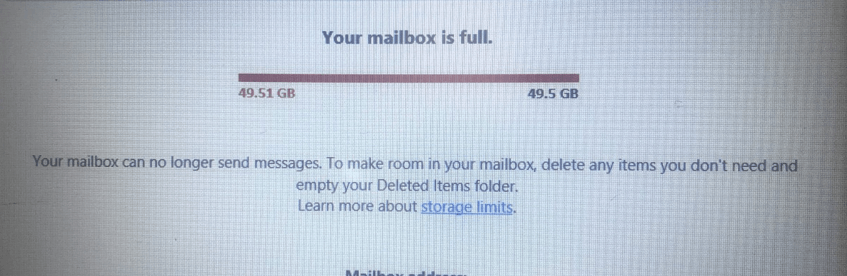
When email stops arriving, the first assumption is usually that the inbox is full. Sometimes that’s right — but not always. Before deleting anything, it’s worth understanding exactly what’s happening, because the wrong approach can occasionally make things worse (particularly for BigPond users navigating Telstra’s migration issues, as covered in our email setup guide). This guide walks through the diagnosis first, then the specific fixes by provider.
Step 1: Is storage actually the problem?
Email providers send a notification when your storage is full — but these notifications sometimes go to the very inbox that’s full, or get missed. Here’s how to tell quickly whether storage is the issue or something else:
Points to a storage problem
- You received a “storage full” or “quota exceeded” warning
- Mail stopped arriving gradually (inbox getting very full over time)
- You can still send email but not receive it
- You have thousands of old emails going back years
May be something else
- Mail stopped suddenly with no warning
- You receive some emails but not others
- Inbox doesn’t look particularly full
- Recently changed providers or got a new computer
Check your actual storage usage before deleting anything — the instructions for each provider are below. Deleting emails when storage isn’t the actual problem wastes time and may remove things you wanted to keep.
How to check your storage usage — by provider
| Provider | Free storage | How to check your usage |
|---|---|---|
| Gmail | 15 GB | Scroll to the bottom of the Gmail page in a browser — the storage indicator shows how much of 15GB you’ve used. Or go to one.google.com/storage for a full breakdown across Gmail, Drive, and Photos. |
| Outlook / Hotmail | 15 GB | In outlook.com: Settings (cog) → General → Storage. Shows a bar graph of usage. Microsoft 365 subscribers get 50–100GB instead. |
| BigPond / Telstra | 1 GB | Only 1GB — the smallest of the major providers. Log in at my.telstra.com.au → your email → look for storage indicator. BigPond inboxes fill up far faster than Gmail or Outlook due to this limit. |
| iCloud | 5 GB (shared) | iCloud storage is shared across email, photos, backups, and more. Settings → [your name] → iCloud → Shows bar graph of usage by category. Email rarely fills iCloud on its own — photos and backups are usually the culprit. |
BigPond users — important: Telstra’s 1GB limit is genuinely small by modern standards. A single week of receiving medical documents, bills, and newsletters with attachments can consume a significant chunk of that quota. If you have a BigPond address and email keeps stopping regularly, the most practical long-term solution is creating a free Gmail account for general use and keeping BigPond only for existing contacts and services. We can set this up and help you migrate during a home visit — see our email setup guide for more on BigPond/Telstra.
The hidden space hogs most people miss
Most people think of email storage as being used by the inbox — the messages you’ve received and read. In reality, storage is used by everything in your account, and several folders quietly accumulate large amounts without people realising.
Sent Items — often the biggest
Every email you’ve ever sent is stored in Sent Items — including any attachments you sent. If you’ve ever emailed a large photo, a document, or a PDF, that file is sitting in Sent Items as well as wherever you sent it. Many people never look in Sent Items when clearing space. On Gmail, Sent Mail takes up storage just like any other folder.
Deleted Items / Bin — not actually gone
Deleting an email moves it to the Deleted Items folder (or Bin/Trash) — it doesn’t free up storage until that folder is also emptied. Many people delete emails regularly but never empty the bin. On Gmail: left sidebar → More → Bin → Empty bin. On Outlook: right-click Deleted Items → Empty folder.
Spam / Junk folder
Spam filters accumulate hundreds or thousands of junk emails over time, all consuming storage. Most people never look in their spam folder because — by definition — it’s not where useful email goes. Check yours: Gmail left sidebar → Spam; Outlook left sidebar → Junk Email. These folders can contain years of messages silently consuming storage. Empty them completely.
Large attachments in old emails
A single email with a 10MB photo attachment uses 10MB of your storage quota — the same as roughly 200 plain-text emails. Years of receiving newsletters, photos from family, and PDF documents add up. Gmail has a useful shortcut: in the search bar type has:attachment larger:5MB — this shows all emails with attachments over 5MB. Delete the ones you don’t need, or save the attachment elsewhere first.
How to free up space quickly — by provider
When it’s not a storage problem — other reasons mail stops arriving
If you’ve checked your storage and there’s plenty of space remaining, something else is causing emails not to arrive. These are the most common non-storage causes:
Emails going to Spam / Junk instead of Inbox
The most common reason specific emails stop arriving — the spam filter has incorrectly classified them. Check your Spam/Junk folder for recent messages that should have gone to your inbox. If you find them, open the email and click “Not spam” or “Not junk” — this teaches the filter not to divert them in future. See our scam protection guide for how to configure spam filters properly.
Email filters routing messages to a folder you don’t check
Email filters can automatically move incoming messages to specific folders. If someone set up a filter previously — or if you accidentally created one — emails from certain senders may be going to a folder you never open. In Gmail: Settings → Filters and Blocked Addresses — look for any rules you didn’t intentionally set up. In Outlook: Settings → Mail → Rules.
Forwarding rules set by an attacker
If your email account was compromised, attackers sometimes set up forwarding rules that copy or redirect your emails to their address — and some rules also delete the email from your inbox so you never see it. If you suspect your account was accessed, check for forwarding rules. In Gmail: Settings → See all settings → Forwarding and POP/IMAP. See our hacked email guide for a complete check.
BigPond migration issues
Telstra’s ongoing BigPond email migration has caused email to stop arriving for some users mid-migration. If you have a BigPond address and mail stopped arriving without warning around a provider communication, this may be the cause. Check whether you can log in at my.telstra.com.au and whether email is accessible there — it may have been migrated to a new system. See our email setup guide for the full BigPond migration situation.
Email app on device not syncing
Sometimes the problem isn’t that emails aren’t arriving at all — it’s that the email app on a specific device (phone, tablet, or computer) isn’t syncing properly. Check whether emails appear when you log in via a web browser (gmail.com, outlook.com). If they appear there but not on your device, the issue is app-specific. A device restart or removing and re-adding the email account in the app usually fixes sync problems.
Preventing it happening again — simple habits that work
Monthly (5 minutes)
- Empty the Bin / Deleted Items
- Empty the Spam / Junk folder
- Unsubscribe from newsletters you don’t read
Quarterly (10 minutes)
- Search for emails with large attachments and delete
- Clear old emails from Sent Items
- Check storage indicator
Gmail makes unsubscribing easy — most newsletters have an “Unsubscribe” link in the email footer. In Gmail you can also click on the sender name at the top of a newsletter → “Unsubscribe” appears automatically. Reducing the volume of incoming email is the most sustainable way to stay within storage limits long-term, especially for BigPond accounts with their small 1GB quota. For seniors who receive the most important emails — medical appointments, bank statements, family messages — keeping a tidy inbox means less chance of missing something critical.
Frequently asked questions
Not immediately. Deleting an email moves it to the Bin/Deleted Items folder, where it typically stays for 30 days before being permanently removed. Storage is only freed once the Bin is emptied (manually or automatically). If you delete 500 emails but don’t empty the Bin, your storage doesn’t actually decrease. Always empty the Bin after a cleanup session to actually reclaim the space.
Generally yes — but do a quick check before bulk-deleting. Look through the most important emails you might want to keep: receipts for major purchases (useful for warranty claims), tax-related documents, anything from doctors or hospitals, important communications with your bank or government agencies. It’s worth saving these to a folder on your computer or a separate “Archive” folder in your email before deleting the rest. For most people, emails older than 2–3 years with no particular importance are safe to delete.
Yes — a free Gmail account gives you 15 times more storage (15GB vs 1GB) with no ongoing maintenance required. The transition involves creating a Gmail account, notifying your key contacts of the new address, and updating it with important services (Medicare, bank, GP, etc.). You can keep the BigPond address active alongside the new Gmail — you don’t have to abandon it. We help Melbourne seniors with this transition regularly — it’s typically a 45-minute task. See our email setup guide for what’s involved.
This is the hidden space hog situation. Gmail storage is shared across Gmail, Google Photos, and Google Drive. Your Photos library — especially if you’ve ever enabled auto-backup of phone photos — may be consuming most of the storage, not email at all. Check one.google.com/storage for a breakdown by service. If Photos is the culprit, managing that is different from managing email. We can help identify which service is using most of your storage during a home visit.
Yes — we do inbox organisation and storage cleanup during home visits regularly across Melbourne. We check actual storage usage, clear the hidden space hogs, set up spam filters properly, and create a simple folder structure to keep things tidy going forward. If you have a BigPond account that keeps filling up, we can also set up a Gmail account alongside it during the same visit. Our rate is $89/hr with no call-out fee. Call 0435 955 429 to book.
Inbox full or mail not arriving?
We come to your home, check actual storage usage, clear the hidden space hogs, set up filters, and make sure emails are arriving reliably. $89/hr, no call-out fee, all Melbourne suburbs.
Related guides
Serving all Melbourne suburbs — Doncaster, Camberwell, Box Hill, Glen Waverley, Kew, Hawthorn, Balwyn, Ringwood and all surrounding areas. View all service areas →
About Fixable: Friendly, patient on-site IT support across all Melbourne suburbs — email, computers, Wi-Fi, printers and more. Always in plain English. Call 0435 955 429 or visit fixable.au