
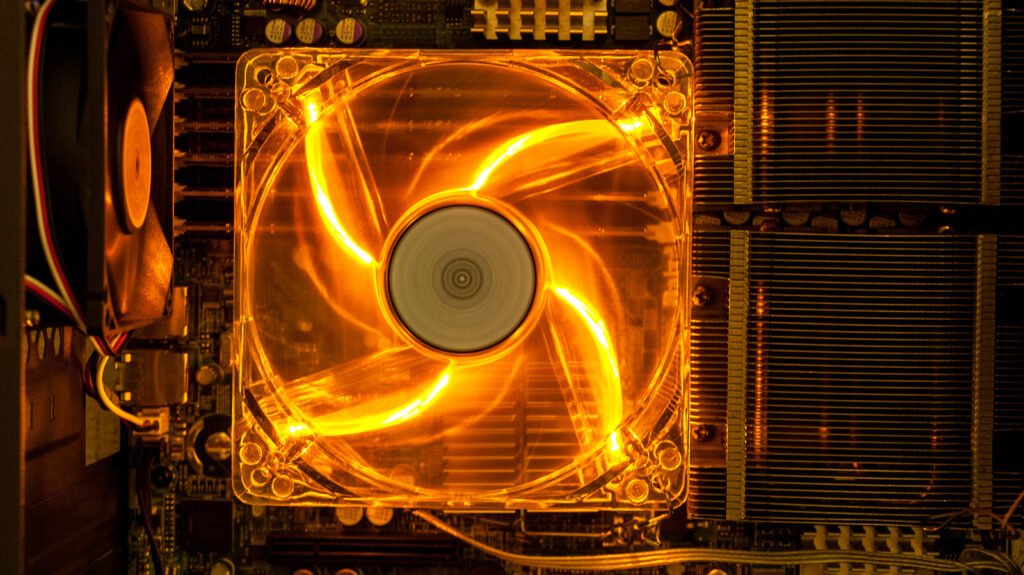
A loud computer fan is the machine’s way of communicating — and what it’s communicating depends on exactly what the noise sounds like and when it happens. Treating all loud fan noise the same way (just “clean the dust”) misses the cases where the real cause is a background program, degraded thermal paste, or a bearing that’s about to fail. This guide starts with identifying the noise type, because that determines everything that follows.
Step 1 — Identify your noise type
Fan is running at full speed continuously. Computer may also feel hot. Most common cause: dust blocking airflow or a background program using the CPU constantly. → See Constant Roar section below.
Fan spins up to full speed then dies down, repeatedly. This is often normal — the fan responding to temperature changes as programs open and close. Becomes a problem if it’s surging even during light use like reading email. → See Software Causes section.
A mechanical, gritty, or rhythmic sound — not just airflow noise. This is bearing failure in the fan itself or (critically) a failing hard drive. These sound similar from the outside. → See Grinding/Clicking section — treat as urgent.
A thin, electronic-sounding squeal rather than a mechanical grind. Often a fan bearing in the early stages of wear, or electrical components near the fan. Less urgent than grinding but worth addressing — it typically worsens over time. → Fan replacement usually resolves this.
Constant loud fan — dust, placement & what to check
A fan that runs at high speed constantly is trying to move enough air to keep the processor below its thermal limit. It’s doing exactly what it should — the problem is that something is either generating too much heat or blocking the airflow the fan needs. As covered in our laptop overheating guide, this is the thermal throttling situation — the fan is compensating for what the cooling system can no longer handle efficiently.
Check 1: Placement and ventilation
Laptops need clear air vents on their sides and bottom. Using a laptop on a bed, cushion, lap, or thick tablecloth blocks these vents and forces the fan to run at full speed almost immediately. Move to a hard, flat surface. For desktops, make sure the case isn’t crammed into a cabinet with no clearance behind it — desktops need at least 10–15cm clearance behind the back exhaust fan.
Check 2: Dust — the most common cause after 2–3 years
Dust accumulates inside the laptop or desktop and packs against the heatsink fins — the metal fins the fan blows air through. When these are blocked, the fan spins faster and faster trying to compensate, but air can’t actually pass through. The fix: a can of compressed air (around $10 from Officeworks) aimed at the exhaust vents in short bursts. For a thorough clean, the computer needs to be opened and the heatsink/fan assembly cleaned directly — this is what we do on a home visit and typically drops idle temperatures by 10–20°C.
Check 3: Power plan setting
Windows “High Performance” power plan runs the processor at full speed constantly — even when you’re just reading an email — generating unnecessary heat and triggering the fan constantly. Check via: Settings → System → Power & sleep → Additional power settings → select Balanced. This single change can significantly reduce fan noise during light tasks. For more detail on power plans and their effect on heat, see our battery draining guide — the same setting that drains battery also makes the fan loud.
Grinding or clicking sounds — treat as urgent
⚠️ Important: grinding or clicking may not be the fan
A grinding or clicking sound from inside a computer can be either a failing fan bearing or a failing mechanical hard drive. From the outside they can sound very similar. The distinction matters enormously because a failing hard drive is a data emergency — continued use can cause permanent data loss. If you’re hearing clicking or grinding, read the hard drive warning in our computer won’t turn on guide (the “clicking noise” row in the data safety table) before deciding how to proceed.
How to tell if it’s the fan or the hard drive
This requires listening carefully to location and pattern. Hard drive sounds: rhythmic clicking, often 1–3 clicks at regular intervals, typically heard when the computer is reading or writing data (loading a program, opening a file). Fan bearing sounds: continuous grinding or rattling that persists regardless of what the computer is doing, often louder when the fan is spinning fast and quieter when it slows.
Quick test: On Windows, open Task Manager (Ctrl + Shift + Esc) and click the Disk column. If Disk usage jumps to 100% when the clicking starts, the hard drive is the source. If the noise is constant regardless of disk activity, it’s more likely the fan.
Fan bearing failure — what it means and what to do
If the grinding is confirmed to be the fan (not the hard drive), the fan bearing is failing. This is a mechanical wear issue that worsens over time — a grinding fan will eventually seize entirely, at which point the computer will overheat and shut down within minutes of being turned on. Fan replacement is generally affordable ($30–$80 for parts on most common laptop models, plus fitting time) and completely worthwhile on an otherwise healthy machine. We carry replacement fans for HP, Dell, Lenovo and ASUS laptops — most common models can be done in a single visit.
Software causes — when the noise is a background program, not hardware
One of the most overlooked causes of constant fan noise: something is using the CPU heavily in the background, generating heat, and driving the fan to full speed. The computer isn’t hot because of dust — it’s hot because a program is constantly working. These are the same software causes that drive computer slowness and battery drain.
Check what’s using CPU — takes 2 minutes:
- Press Ctrl + Shift + Esc to open Task Manager
- Click the CPU column to sort by usage (highest first)
- Watch for 30–60 seconds — note what’s using significant CPU when the fan is loud
Normal — wait it out
- Windows Update (TiWorker.exe)
- Antivirus scan (MsMpEng.exe)
- Windows Search indexing
These are temporary — fan will quiet when done
Worth investigating
- Unknown process name using 30%+ CPU
- Browser (Chrome, Edge) using 50%+ CPU
- Any process you don’t recognise
Could be malware — see our virus guide
A specific browser note: Chrome and Edge can consume significant CPU when many tabs are open, especially tabs playing video or with JavaScript-heavy content. If the fan is loudest when the browser is open, try closing unused tabs. In Chrome, you can see CPU usage per tab at Menu → More tools → Task manager (not Windows Task Manager — Chrome has its own).
When thermal paste is the fix — and what it actually is
This is the fix the old post mentions without explaining — so here’s the full picture. Between the processor (CPU) and the metal heatsink that sits on top of it, there’s a thin layer of thermal paste — a heat-conducting compound that fills the microscopic gaps between the two surfaces and ensures heat transfers efficiently from the chip to the heatsink.
Over 4–7 years, this thermal paste dries out, cracks, and becomes less effective. The result: heat transfers poorly from the CPU to the heatsink, the CPU runs hotter than it should, and the fan runs constantly trying to compensate. A computer that’s had its thermal paste replaced (along with a dust clean) often drops idle temperatures by 15–25°C — which means the fan barely spins during normal use.
Signs thermal paste may be the issue
- Computer is 5+ years old
- Fan is loud even during light tasks (email, browsing)
- CPU temperature consistently above 80–85°C at idle
- Dust clean improved things briefly but noise returned
- Fan was loud before AND after a dust clean
What the service involves
- Open the laptop/computer
- Remove heatsink carefully
- Clean off old dried paste
- Apply fresh thermal paste
- Dust clean while open
- Temperature test before leaving
Thermal paste reapplication combined with a dust clean is the most comprehensive maintenance service for an older laptop — similar to a car service. On a machine that’s otherwise healthy, it’s well worth doing rather than replacing. We check whether thermal paste is the likely cause before recommending it — there’s no point paying for it if the real issue is a background program or the power plan setting.
Frequently asked questions
If the fan is loud but the computer feels cool, the fan may be running at full speed due to a software issue or sensor failure rather than actual heat. Check Task Manager for CPU usage — if something is consistently using 50%+ CPU, that’s generating heat even if the outside of the machine doesn’t feel warm (the fan is doing its job). Alternatively, some computers have a BIOS/firmware setting that runs the fan at a set speed regardless of temperature — or a temperature sensor has failed and the system defaults to maximum fan speed as a safety measure. A technician can check sensor readings to confirm which it is.
Yes — blowing compressed air into the exhaust vents (the slots on the side or back of a laptop, the back of a desktop) is safe and can dislodge surface dust. A few practical notes: use short 2–3 second bursts rather than a continuous stream; hold the can upright to prevent liquid propellant from spraying out; do this with the computer turned off. What compressed air through the vents doesn’t do: it doesn’t reach the packed dust on the heatsink fins inside the machine. For that, the computer needs to be opened. Surface cleaning via the vents is a useful maintenance step but doesn’t substitute for a full internal clean after several years.
Somewhat normal — charging generates heat from the battery and charging circuit, which raises overall system temperature, which runs the fan faster. The fan should be louder while charging than when running on battery (especially if on a demanding task). If the fan is dramatically louder while charging — loud enough to be disruptive — it may indicate the battery or charging circuit is running hotter than normal, or the power plan is switching to “High Performance” when plugged in (a Windows default on some systems). Check the power plan setting as described in the Constant Roar section above. If the battery-related heat angle interests you, our battery guide covers how heat affects battery health long-term.
Not necessarily — a fan working hard is doing its job. The concerning scenarios are: grinding or clicking (bearing failure or hard drive issue), the fan becoming noticeably louder over weeks (escalating heat problem), or the fan noise being accompanied by the computer shutting itself off (thermal protection engaging). A constant but steady roar during normal use, particularly on an older laptop, is most likely dust and thermal paste and is entirely fixable without any risk to the machine continuing to work. See our fix-or-replace guide for the broader assessment of when it’s worth maintaining vs upgrading.
Yes — we do internal dust cleans and thermal paste reapplication during home visits across all Melbourne suburbs. We bring the necessary tools to open common laptop brands safely (HP, Dell, Lenovo, ASUS, Acer, Toshiba, and most MacBook models), clean the heatsink and fan assembly, apply fresh thermal paste, and check temperatures before leaving to confirm the improvement. We also run the software checks (Task Manager, power plan, browser usage) during the visit to rule out software causes before opening anything up. Our rate is $89/hr with no call-out fee. Call 0435 955 429 to book.
Fan too loud to ignore?
We diagnose the cause, clean the dust, replace thermal paste if needed, and confirm temperatures have improved before leaving. $89/hr, no call-out fee, all Melbourne suburbs. If you’re hearing clicking or grinding, call us first.
Related guides
Serving all Melbourne suburbs — Doncaster, Camberwell, Box Hill, Glen Waverley, Kew, Hawthorn, Balwyn, Ringwood and all surrounding areas. View all service areas →
About Fixable: Friendly, patient on-site IT support across all Melbourne suburbs — computers, laptops, Wi-Fi and more. Always in plain English. Call 0435 955 429 or visit fixable.au