
On this page
A computer that freezes randomly is one of the most disruptive tech problems — it interrupts emails, banking, work, and video calls, often without any warning or clear explanation. The key to fixing it is that different types of freezing have different causes, and treating them all the same way (“just reinstall Windows”) misses the cases where the real problem is hardware that’s failing. This guide starts with identifying which type of freeze you have, because that determines whether your data is at risk and what to do about it.
Step 1 — Identify your freeze type
Type A — Freezes specifically while opening files, loading programs, or saving
The computer hangs or freezes noticeably when you open a file, try to save a document, or launch a program — but may work okay during light tasks like browsing. This pattern points to a failing hard drive. → See the hard drive section below. This one is urgent.
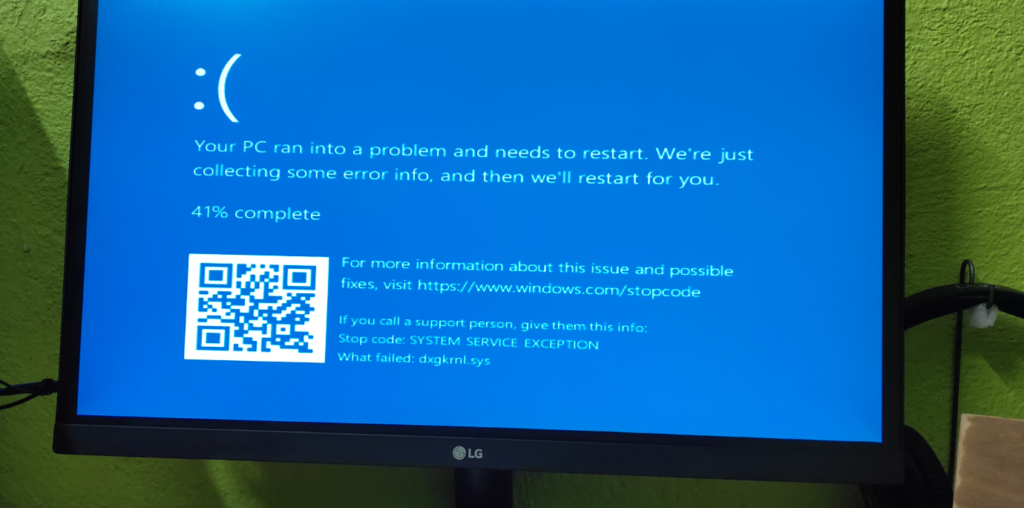
Type B — Blue Screen of Death (BSOD) — screen turns blue with an error message
A full blue screen with white text and an error code (e.g. “MEMORY_MANAGEMENT”, “KERNEL_SECURITY_CHECK_FAILURE”, “CRITICAL_PROCESS_DIED”). Windows has detected a serious error and crashed to prevent damage. Each error code points to a specific cause. → Note the error code — it’s diagnostic information. See the BSOD section below.
Type C — Complete hard freeze, cursor stops, requires forced restart
Everything stops — mouse cursor doesn’t move, keyboard doesn’t respond, nothing on screen changes. Requires holding the power button to restart. Most common causes: overheating, RAM fault, or a driver conflict. → See the RAM and overheating sections.
Type D — Brief stutters, momentary freezes of 1–5 seconds then resumes
The computer briefly freezes then recovers — cursor stops moving for a few seconds then continues. Usually a software cause: background programs maxing out the CPU, Windows Update running at an inconvenient time, or a full hard drive. → See the software causes section.
The failing hard drive freeze — what it means and why it’s urgent
⚠️ If your computer freezes while opening files or saving — act on this now
A hard drive (HDD — the spinning mechanical type still found in many computers 5+ years old) that’s starting to fail often causes freezing specifically when the drive is doing work: opening a document, loading a website with images, saving a file, or scanning with antivirus. The computer “waits” for the drive to respond, the drive takes too long or doesn’t respond at all, and everything locks up. This is the earliest warning sign of impending hard drive failure — and every forced shutdown during a freeze risks making the damage worse.
Check your hard drive health with Windows built-in tools:
- Open File Explorer → right-click on the C: drive → Properties → Tools → Check → this runs a basic disk check
- For a deeper check: right-click Start → Windows Terminal (Admin) → type
wmic diskdrive get status→ if the result shows anything other than “OK” — the drive has a fault - Alternatively, download the free CrystalDiskInfo — it reads the drive’s own health data (S.M.A.R.T.) and shows a clear Good / Caution / Bad status
If the drive shows Caution or Bad: Back up your important files (photos, documents) to an external drive or USB stick immediately — before doing anything else. Then see our file transfer guide for what needs saving. An SSD replacement can then give the computer years of additional reliable life — see the SSD section below.
Blue Screen error codes — what the most common ones mean
| Error code | Most likely cause |
|---|---|
| MEMORY_MANAGEMENT | Faulty RAM or RAM incompatibility — run Memory Diagnostic (see below) |
| KERNEL_SECURITY_CHECK_FAILURE | Driver conflict or corrupt system files — often after a Windows Update |
| CRITICAL_PROCESS_DIED | Corrupted Windows system file — often fixable with System File Checker (sfc /scannow) |
| PAGE_FAULT_IN_NONPAGED_AREA | RAM or driver issue — run Memory Diagnostic first |
| IRQL_NOT_LESS_OR_EQUAL | Faulty or outdated driver — often a recently installed program or Windows Update |
Test your RAM — Windows Memory Diagnostic
RAM (the computer’s short-term memory) faults cause some of the most unpredictable freezing patterns — the computer can work fine for hours then freeze completely during an apparently simple task. Windows has a built-in RAM testing tool most people never know about.
Run Windows Memory Diagnostic:
- Press Windows key + R → type
mdsched.exe→ press Enter - Select “Restart now and check for problems”
- The computer restarts and runs a memory test — this takes 5–15 minutes
- After restarting, results appear in a notification. To find results later: search “Event Viewer” → Windows Logs → System → look for events from “MemoryDiagnostics-Results”
If errors are found: A RAM stick has failed. On desktops, RAM sticks can be replaced relatively easily and cheaply. On older laptops, RAM replacement is possible on some models but not all. We diagnose and quote on RAM replacement during a home visit. On some computers, simply reseating the RAM (removing and refitting it) resolves contact issues that cause false failures.
Software causes — when it’s not hardware
If the hard drive and RAM tests come back clean, and the freezing pattern is brief stutters rather than complete hard freezes, software is almost certainly the cause. These are the same background program causes covered in our slow computer guide — but causing freezing instead of (or in addition to) slowness.
Full or nearly-full hard drive / SSD
Windows needs free space on the C: drive to run normally — for virtual memory (swap space), temporary files, and updates. When the drive is 90%+ full, brief freezes become common during any disk-intensive operation. Check: open File Explorer → right-click the C: drive → Properties. If it’s more than 85% full, clearing space (emptying the Recycle Bin, clearing Downloads, running Disk Cleanup) will often resolve the freezing immediately.
Background programs maxing out CPU or RAM
Open Task Manager (Ctrl + Shift + Esc) during or just after a freeze — look at CPU and Memory columns. If either is at 90–100%, something is consuming all available resources and the freeze is the computer struggling to respond. Common culprits: antivirus doing a full scan (normal — temporary), Windows Update installing (normal — temporary), or an unknown process using resources constantly (may indicate malware).
Overheating — causing the processor to stall
As covered in our laptop overheating guide, severe overheating can cause a complete freeze rather than just a slowdown — the processor halts entirely to protect itself from damage. Signs: the computer freezes after being on for an hour or more (once it’s had time to heat up), or the fan is very loud just before the freeze. Check CPU temperatures using HWMonitor (free download) — consistently above 95°C is causing damage and needs a dust clean urgently.
Corrupted Windows system files — SFC scan
Windows has a built-in System File Checker that repairs corrupted system files — a common cause of random freezing, especially after a failed update. Run it via: right-click Start → Windows Terminal (Admin) → type sfc /scannow → press Enter. This takes 15–20 minutes and automatically repairs any corrupted files it finds. Restart after completion.
When an SSD upgrade fixes chronic freezing permanently
This is the fix that transforms many older computers — and it’s far cheaper than replacement. If your computer is 5+ years old and still has a spinning hard drive (HDD), the drive is almost certainly the single biggest reason for the freezing, slowness, and sluggish performance. An HDD reads and writes data using moving mechanical parts — they’re dramatically slower than modern SSDs, and they slow down further as they age.
Old HDD — typical symptoms
- Takes 2–3 minutes to fully start up
- Freezes briefly when opening programs
- Disk usage at 100% in Task Manager constantly
- Generally slow, especially for first 10 minutes after startup
After SSD upgrade — typical result
- Startup takes 15–30 seconds
- Programs open instantly
- Freezing almost entirely eliminated
- Computer feels like new
An SSD upgrade involves replacing the spinning HDD with a solid-state drive — no moving parts, dramatically faster, and more reliable. We clone the existing drive during the upgrade, so all Windows settings, programs, and files transfer automatically. No reinstalling anything. Cost: typically $150–$250 all-in depending on the laptop/desktop model and the SSD size chosen. For the broader context on whether an SSD upgrade or full replacement makes more sense for your computer’s age, see our old computer running slow guide.
Frequently asked questions
Not necessarily. Blue screens are serious enough to warrant investigation, but most BSOD errors are caused by software issues — driver conflicts, corrupted system files, or RAM faults — that are fixable without replacing the computer. Note the exact error code shown on the blue screen (look for the text in all capitals like MEMORY_MANAGEMENT or CRITICAL_PROCESS_DIED) and refer to the table above. If the BSODs are happening frequently (more than once a week), get it looked at sooner rather than later — but it’s likely fixable.
A freeze that resolves on its own is usually a software cause — background program hogging resources, full disk, or Windows doing maintenance. However, if it specifically occurs while opening files or saving documents and takes a minute or two to recover, this can also be a hard drive struggling to read data. Run the CrystalDiskInfo check described above to rule out a failing drive. If the drive is healthy, the Task Manager CPU/Memory check during or just after a freeze will usually show what’s causing it.
Yes — some malware causes freezing by consuming CPU or RAM constantly in the background. If Task Manager shows an unknown process using significant resources (30%+ CPU consistently), and you can’t identify what it is, this warrants a malware check. Run a Windows Security scan (search “Windows Security” → Quick scan). See our virus removal guide for more detail on distinguishing malware-caused slowness and freezing from hardware causes.
Video playback and video calls use the GPU (graphics processor) as well as the CPU. Freezing specifically during video often points to: an outdated graphics driver (most fixable cause — update via Device Manager → Display Adapters → Update driver), overheating of the GPU (check temperatures with HWMonitor), or insufficient RAM for the combination of browser + video + other open programs. If freezing happens during Zoom or Teams calls specifically, also check your internet connection — a dropping-out internet connection can cause video call apps to freeze and crash.
Yes — we diagnose all four freeze types during home visits across Melbourne. We run the hard drive health check, memory diagnostic, check CPU temperatures, review Event Viewer logs (which record every crash and freeze with error codes), and identify software causes via Task Manager. If an SSD upgrade or RAM replacement is the right fix, we quote on that during the visit before doing any work. Our rate is $89/hr with no call-out fee. Call 0435 955 429 or book online.
Computer freezing and you’re not sure why?
We run the hard drive check, memory test, temperature check, and event log review in one visit — diagnose the exact cause and fix it. $89/hr, no call-out fee, all Melbourne suburbs.
Related guides
Serving all Melbourne suburbs — Doncaster, Camberwell, Box Hill, Glen Waverley, Kew, Hawthorn, Balwyn, Ringwood and all surrounding areas. View all service areas →
About Fixable: Friendly, patient on-site IT support across all Melbourne suburbs — computers, laptops, Wi-Fi and more. Always in plain English. Call 0435 955 429 or visit fixable.au