
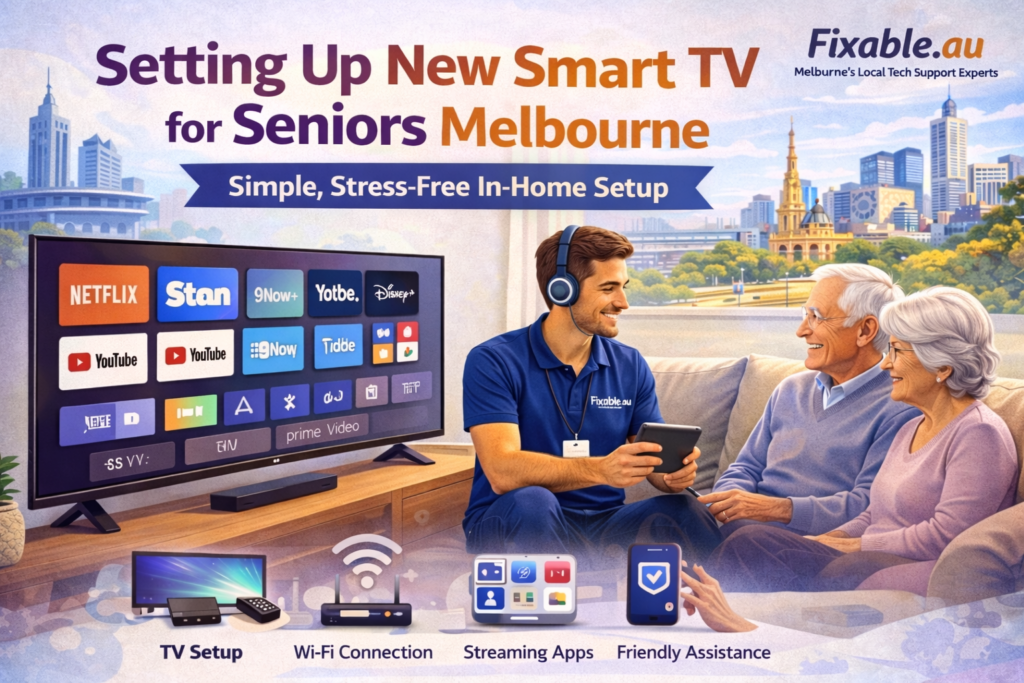
We get a lot of calls from adult children who’ve bought Mum or Dad a new Smart TV — often as a birthday or Christmas gift — and then realised that setting it up properly, in a way that actually works for an older person, is more involved than they expected. The TV gets connected, Netflix gets installed, and then the questions start: “How do I get back to the main menu?” “Why are there six remotes?” “The sound went off and I can’t fix it.”
Setting up a Smart TV for a senior isn’t harder than a standard setup — but it’s different. The goal isn’t to install every feature. It’s to create a setup that’s simple enough to use independently every day, with the right apps, the right remote, and accessibility settings configured properly from the start. This guide covers what that actually looks like.
The biggest problem with most “standard” Smart TV setups for seniors
Modern Smart TVs ship with a home screen full of tiles for apps, recommendations, advertisements, and content the person will never use. The remote has 40+ buttons. The TV switches between “inputs” unexpectedly. A soundbar adds another remote and another set of buttons to learn.
For most people under 60 this is mildly annoying. For many seniors — particularly those who didn’t grow up with this technology — it becomes genuinely overwhelming, and the TV ends up being used far less than it could be.
The setup we do for seniors at Fixable is specifically designed to reduce this friction. We pare everything back to what the person actually needs and will use, configure the TV so it behaves predictably, and make sure the explanation at the end matches how they think — not how the TV was designed.
The remote problem — and what to do about it
The standard Smart TV remote is genuinely poorly designed for older users. Most have tiny buttons that look identical, confusing shortcut keys for streaming services the person doesn’t use, and a touchpad or scroll area that’s easy to accidentally activate.
Standard remote — common complaints
- Too many buttons, most unlabelled
- Easy to accidentally change input
- Home button takes you somewhere unexpected
- Volume and channel keys feel identical
- Streaming shortcut keys (Netflix, Disney+ etc) get pressed accidentally
- Text entry is slow and frustrating
What we do instead
- Programme the standard remote as a backup
- Set up a simplified universal remote as the primary
- Label the 4–5 buttons they’ll actually use
- Disable or hide input switching if not needed
- Set the TV to turn on at the last-used app
- Show a simple written button guide to keep nearby
Simple remote recommendation: The Logitech Harmony 665 and One For All Contour 4 are both excellent simplified universal remotes that can control the TV, soundbar, and streaming device with clearly labelled large buttons — about $40–$80. We can bring one to the visit if you’d like, or programme the TV’s existing voice remote to only respond to the few commands needed. Let us know when you book.
Accessibility settings most setups skip entirely
Every major Smart TV brand has accessibility settings built in — but they’re buried deep in menus and almost never configured during a standard setup. For seniors, getting these right from the start makes daily use significantly easier.
Text size and display
Most TVs default to small menu text. We increase text size to maximum, turn on high contrast mode where available (particularly useful for LG and Samsung), and adjust menu font weight. This makes navigating the home screen and settings far less squinting.
Audio description and dialogue clarity
Samsung’s “Clear Voice” mode and LG’s “AI Sound” both boost dialogue frequencies, making speech clearer without just increasing overall volume. Audio Description (AD) mode — where a narrator describes on-screen action — is available on ABC iview and SBS On Demand and can be enabled per-app for those who benefit from it. We configure these where relevant rather than leaving them at default.
Subtitles by default
We turn subtitles on by default in Netflix, ABC iview, and Stan — the three most commonly used services. Many seniors prefer subtitles even with good hearing, particularly for shows with fast dialogue or accents. Enabling them globally on each app means they don’t need to find the setting every time.
Simplified home screen
We remove tiles for apps and services the person won’t use, and move the two or three most-used apps (usually ABC iview, Netflix, and YouTube) to the first positions on the home screen. On Samsung and LG, this takes about 5 minutes and makes a huge difference — the home screen goes from overwhelming to immediately useful.
Auto-brightness and night mode
Modern TVs often default to “Vivid” or “Dynamic” picture mode which is very bright — comfortable in a showroom but harsh in a home. We set picture mode to “Standard” or “Cinema” and enable auto-brightness adjustment. For seniors who watch TV in low light, this also reduces eye strain significantly.
Which streaming services actually suit seniors — and which to skip
There’s no point installing 8 streaming apps if the person will only use 2 or 3. Fewer apps means a simpler home screen, fewer passwords to manage, and less confusion. Here’s what we typically find works well for seniors in Melbourne — and what we usually skip.
| Service | Cost | Good for seniors? | Why |
|---|---|---|---|
| ABC iview | Free | ⭐⭐⭐⭐⭐ | No subscription. News, documentaries, Australian dramas. Audio description available. Familiar content. |
| SBS On Demand | Free | ⭐⭐⭐⭐⭐ | Free, wide variety, excellent for world cinema and history documentaries. No account required. |
| YouTube | Free | ⭐⭐⭐⭐⭐ | News, music, how-to videos, travel, and nostalgia content. We set up a simple search profile during the visit. |
| Netflix | From $7.99/mo | ⭐⭐⭐⭐ | Good for those who want movies and series. We set up the profile with larger thumbnails and turn off autoplay, which many seniors find startling. |
| Stan | From $12/mo | ⭐⭐⭐ | Good if they watch specific shows — otherwise Netflix usually covers similar content at lower cost. |
| Kayo Sports | From $25/mo | ⭐⭐⭐ | Only worth installing if they follow AFL, cricket, or racing — otherwise adds unnecessary complexity. |
Our approach: We ask what the person actually watches before installing anything. ABC iview, SBS On Demand, and YouTube are free with no subscription management — these go on every senior setup. We add Netflix, Stan, or Kayo only if they’re already subscribers or specifically want them. Fewer apps = simpler home screen = more confident daily use.
What we do differently for a seniors setup vs a standard visit
Pricing: Our rate is $89/hr across all Melbourne suburbs, with no call-out fee. A full seniors Smart TV setup — TV connected, apps installed, accessibility configured, remote set up, and full walkthrough — typically takes 75–90 minutes. Family members can book on behalf of a parent. See our full pricing →
A note for adult children booking on behalf of a parent
We get many bookings from adult children — often in a different suburb to their parent — who want a technician to go to Mum or Dad’s home and get the TV set up properly. This is completely normal and we’re very comfortable with it. A few things that help:
- 📧 If you know the streaming service passwords (Netflix, etc.), text or email them to your parent before the visit, or to us
- 📺 Let us know the TV brand and model if you know it — helps us prepare
- 📞 You’re welcome to be available by phone during the visit if your parent wants to check something with you
- 📋 We’ll explain what we’ve done to your parent clearly, and can also follow up with you directly if you’d prefer a summary
Frequently asked questions
This is the most common problem we hear. Usually it’s the “Input” or “Source” button being pressed accidentally, which switches the TV to an HDMI input with nothing connected — the screen goes black or shows “no signal.” We can disable unused inputs, set the TV to always start on the correct input, and optionally swap to a simplified remote that doesn’t have an easily-pressed input button. We can sort this in 15 minutes during a visit.
A combination approach works best. First, enable subtitles by default across all streaming apps. Second, enable a dialogue clarity or voice enhancement setting — Samsung has “Clear Voice,” LG has “Clear Voice” and “AI Sound,” Sony has “Voice Zoom.” Third, if he uses a soundbar, ensure it’s set to a mode that boosts midrange frequencies where speech sits. If he has a hearing loop or telecoil in his hearing aids, some soundbars (particularly Sony) support Bluetooth pairing directly to hearing aids.
Not necessarily — but ABC iview and SBS On Demand are free and give access to catch-up TV, which many seniors find useful when they’ve missed a programme. They don’t require a subscription or credit card, just a basic account. We typically install these two even for people who mainly watch free-to-air, as they extend what’s available without adding any ongoing cost or complexity.
Absolutely. We regularly visit homes where a well-meaning family member or previous technician set up a TV in a way that made sense to them but not to the person using it daily. We can rearrange the home screen, remove unused apps, reconfigure the remote, update accessibility settings, and do a fresh walkthrough — all without wiping the existing setup or losing any accounts.
All Melbourne suburbs. We’re particularly active in Melbourne’s eastern and south-eastern areas including Doncaster, Camberwell, Kew, Hawthorn, Balwyn, Glen Waverley, Box Hill, and surrounding areas. Same $89/hr rate everywhere, no call-out fee.
Book a seniors Smart TV setup
We visit your parent’s home, set everything up properly, configure it for their needs, and make sure they’re confident using it before we leave. Family members can book on behalf of a parent. $89/hr, no call-out fee, all Melbourne suburbs.